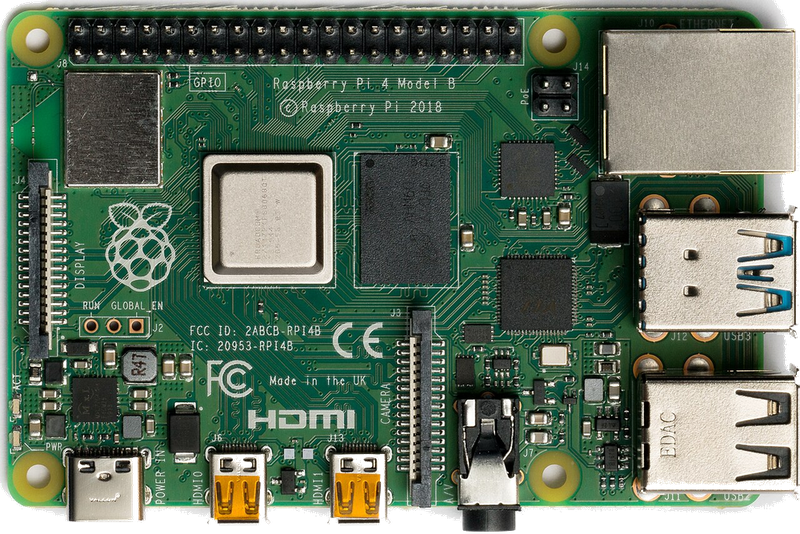
Single-board computer
Raspberry Pi & spol.
A cheap box the size of a deck of cards that you can turn into a retro console for your TV.
Raspberry Pi 4 Model B — celá „konzole" se vejde do dlaně
The Raspberry Pi is a tiny single-board computer (SBC) that became a legend of home tinkering — and it plays in the top league when it comes to retro gaming. For a few dozen dollars you get a quiet, power-efficient box that you hook up to your TV, load a ready-made system onto, and end up with a tailor-made retro console. On top of that, there is a huge community and ready-made solutions around the Pi, so getting started is a matter of minutes.
Specs
- Recommended models
- Pi 4 (4 GB) or Pi 5; Pi Zero 2 W for 8/16-bit
- Output
- HDMI (Pi 4/5: up to 4K), 3.5mm audio via adapter
- Storage
- microSD (Pi 5 also NVMe via HAT)
- Systems
- Batocera, RetroPie, Recalbox, Lakka
- Power
- USB-C (Pi 5 recommends a 27W supply)
- Controllers
- Bluetooth and USB (Xbox, 8BitDo, PS…)
What it runs
- SmoothlyNES, SNES, Mega Drive, GB/GBA, PS1, PC Engine
- MostlyNintendo 64, PSP, Saturn (mainly Pi 5)
- MostlyDreamcast (Pi 5)
- Select titlesPS2, GameCube (Pi 5 only, selected titles)
What is a Raspberry Pi
Raspberry Pi is a family of low-cost, credit-card-sized single-board computers (SBCs, single-board computers) developed by the British non-profit Raspberry Pi Foundation and sold commercially by Raspberry Pi Ltd. Practically the entire core of a computer is integrated onto a single printed circuit board: an SoC (system-on-chip) processor, RAM, graphics, input/output ports and a 40-pin GPIO expansion header. Instead of a hard drive it uses a microSD card, power is supplied via a USB connector, and the operating system is most often a Linux distribution. The project's original mission was to bring an affordable machine back into schools, one on which children could learn to program, much as they once did on 8-bit computers.
For retro gaming, the Raspberry Pi is interesting for an entirely different reason than the one it was created for: it is the most widespread and best community-supported emulation platform of all. Thanks to its huge user base there are ready-made, literally turnkey systems (RetroPie, Batocera, Lakka, RecalBox) that turn the board into a gaming console for hundreds of old computers and consoles. A Pi can be hidden inside a retro case, built as an arcade cabinet (bartop), embedded into a NES replica or a gaming cabinet reproduction, or simply connected to a TV via HDMI and played with a gamepad.
Who is it for? The Raspberry Pi suits tinkerers and enthusiasts who don't just want to take a handheld out of the box, but want to build, configure and understand how things work. It's an ideal foundation for DIY arcades, media centres (Kodi) combined with emulation, for educational projects and for a home server. Conversely, someone who wants to play "on the go" immediately without building their own controls and screen will reach instead for a ready-made retro handheld. The Pi is a platform, not a finished product — and that is its greatest strength as well as its main barrier.
History and context
The first Raspberry Pi Model B was released in 2012 and became a global phenomenon — within a few years millions of units were sold and the Pi became one of the best-selling computers of British origin in history. Founder Eben Upton and his team were responding to the fact that children were arriving at university without any programming experience, because home computers had meanwhile been replaced by closed gaming consoles and tablets. The goal was a price of around 35 dollars and an openness that would invite experimentation.
From an educational tool it quickly became a universal instrument. Versions emerged such as the Model A (cheaper, fewer ports), the compact Pi Zero (2015, priced around 5 dollars), the Compute Module compute modules for industrial deployment, and progressively more powerful generations — Pi 2, Pi 3, Pi 4 and, in 2023, the Pi 5. Each generation brought a faster processor, more memory and better connectivity, while retaining backward compatibility of dimensions and the 40-pin GPIO.
The retro community discovered the Pi practically immediately. Projects such as RetroPie (built on EmulationStation and RetroArch) turned the board into an easily accessible emulation console, and a whole ecosystem of cases, controllers and guides grew up around it. The Pi thus became the de facto standard for home emulation of the 8-bit, 16-bit and 32-bit eras, and a reference point against which both competing SBCs (Odroid, Orange Pi) and ready-made gaming handhelds are measured.
Hardware in detail
The heart of every Pi is a Broadcom SoC. The key generations for emulation: the Pi 3 / 3B+ with a quad-core 64-bit ARM Cortex-A53 (BCM2837) at roughly 1.2–1.4 GHz; the Pi 4 with the more powerful Cortex-A72 (BCM2711) at 1.5–1.8 GHz; and the Pi 5 with a Cortex-A76 (BCM2712) at around 2.4 GHz, which brought a step-change increase in performance. Graphics are handled by the integrated VideoCore GPU (VideoCore IV on older models, VideoCore VII on the Pi 5), which on newer models handles OpenGL ES and hardware video decoding.
RAM varies by model and variant: the Pi 3 has 1 GB of LPDDR2, the Pi 4 is sold with 1/2/4/8 GB of LPDDR4, and the Pi 5 with 2/4/8 GB (later also 16 GB) of LPDDR4X. For most 8–32-bit emulation, 1–2 GB is more than enough; more memory helps with more demanding systems, scraping large libraries and running a full desktop. Instead of a disk it uses a microSD card (quality A1/A2 class cards are recommended); the Pi 4 and 5 can also boot from a USB SSD, and the Pi 5 added a PCIe connector for attaching an NVMe drive via a HAT.
Connectivity is generous for an SBC: an HDMI output (the Pi 4 and 5 have a pair of micro-HDMI ports with support for up to 4K), USB ports (the Pi 4 added two USB 3.0), Gigabit Ethernet, Wi-Fi and Bluetooth (from the Pi 3 onward), a 3.5 mm combined audio/video jack on the larger models, and of course the 40-pin GPIO for connecting buttons, displays and HATs. The Pi has no display or battery of its own — both are a matter of the project you build the board into.
Cooling is a crucial topic for emulation. A bare Pi 3 in a closed case suffers from thermal throttling (reducing frequency because of heat), which shows up as stutters. On the Pi 4 and especially the Pi 5, active cooling is practically mandatory — the Pi 5 even has a connector for the official Active Cooler (a fan with a heatsink) controlled according to temperature. The minimum is a quality passive heatsink, the ideal is a heatsink with a fan or an aluminium case acting as a heatsink. A stable power supply (an official adapter) is the second condition for trouble-free operation.
Operating systems
The official system is Raspberry Pi OS (formerly Raspbian), a Linux distribution derived from Debian and tuned directly for Pi hardware. It's a full-fledged desktop as well as a foundation for your own projects; for gaming you can manually install RetroArch or individual emulators onto it. For ordinary deployment the Raspberry Pi Imager tool is used, which formats the card and writes the system within a few minutes, including pre-configuration of Wi-Fi and SSH.
For emulation, however, most people reach for ready-made community systems. RetroPie is the best known — it builds on Raspberry Pi OS, uses the EmulationStation frontend and RetroArch (libretro) cores; it is highly configurable and has a huge community. Batocera.linux, by contrast, is a "read-only" system that runs from the card without installation, is extremely easy to get going and popular for multi-platform use. Recalbox aims for maximum simplicity for beginners, and Lakka is the official RetroArch distribution with a clean, minimalist interface.
The common denominator of most of them is RetroArch — a unified environment that loads emulation cores (cores) via the libretro API. Thanks to this, dozens of emulators are controlled through one consistent interface, and controller settings, shaders, save states and runahead are shared. Alongside libretro cores, standalone (standalone) emulators are also used where they offer better performance or compatibility (for example PPSSPP for the PSP, or specialised cores for arcades).
Besides gaming, the Pi can be used as a media centre (LibreELEC with Kodi), or the board can be switched between purposes. There are even images that combine emulation with Kodi, so a single device serves both as a gaming console and as a movie player by the TV. The choice of system is mainly a question of how much you want to configure yourself: Batocera/Recalbox for convenience, RetroPie for control, Lakka for purity.
Compatibility by platform
What the Pi can handle depends primarily on the generation. The Pi 3/3B+ reliably and smoothly handles the 8-bit and 16-bit eras: NES, SNES, Master System, Mega Drive/Genesis, Game Boy / GBC / GBA, PC Engine, and also most arcades from the 1980s and the early 1990s (older MAME romsets, FBNeo/FinalBurn). Sega CD, PC Engine CD and similar systems also run well. This is the sweet spot where the Pi 3 still makes sense today as a cheap, low-power little machine.
The Pi 4 raised the bar to the 32-bit generation: PlayStation 1 (PCSX-ReARMed) runs perfectly smoothly, Nintendo 64 is reasonably playable for a range of titles (bearing in mind that the N64 has always been demanding for accurate emulation), the PSP via PPSSPP handles a large part of the library at reasonable resolution, and the Sega Saturn — a notoriously difficult architecture — is partly playable but with compromises. The Dreamcast (Flycast) is playable for many games, though not unreservedly. The Pi 4 also better handles demanding shaders and higher resolutions on older systems.
The Pi 5, thanks to its markedly stronger CPU, pushes the boundary further — it handles the N64, Saturn and Dreamcast better, and it also manages the more sensitive titles that the Pi 4 struggled with. Even so, there are clear ceilings: PlayStation 2, GameCube, Wii, Nintendo DS (3D) and newer systems are generally beyond the Pi's smooth playability, or playable only for undemanding exceptions. Anyone who wants the PS2/GameCube era will reach instead for a powerful x86 mini PC or a strong ARM device.
When planning, a rule applies: the newer and more 3D-demanding the system, the higher the demands on emulation accuracy, and the sooner the Pi hits a wall. For 2D classics the Pi is practically without competition in the price/performance/power ratio; for late 3D consoles it is the wrong tool. It's always wise to verify a specific game — emulation isn't a binary "works/doesn't work", but a spectrum from smooth through minor stutters to graphical glitches.
Controls and ergonomics
Because the Pi is a bare board, the controls are entirely up to you. The simplest route is a USB or Bluetooth gamepad — Xbox controllers, PlayStation (DualShock/DualSense), 8BitDo (extremely popular for retro aesthetics and compatibility) and many generic pads all work. Systems like RetroPie and Batocera have a button-mapping wizard on first launch, so you set up the controller once and it applies to all emulators.
For arcade builds (bartop, fightstick), microswitches and joysticks are connected to the GPIO via interfaces such as Adafruit Retrogame, or via USB encoders (for example zero-delay encoders) that present the buttons as a classic game controller. This creates an authentic arcade feel. For portable DIY handhelds (for example kits built around the Pi Zero), the buttons are likewise wired to the GPIO and the image goes to a small display.
Ergonomics, then, are not dictated by the device but by how you build it. This is a double-edged sword: it gives complete freedom (from a single gamepad to a full-size standing cabinet), but it requires decisions, purchases and often soldering. For comfortable couch gaming a single wireless pad suffices; for multiple players it's sensible to have several gamepads and, on the Pi 4/5, to use the ample USB ports, or Bluetooth for wireless ones.
Multiplayer and TV output
The Pi is directly predestined for playing on a TV: it connects via HDMI (on the Pi 4/5 through a micro-HDMI adapter or cable) to any modern TV or monitor, and the image goes straight to the big screen. Thanks to this it functions like a classic home console — suitable for local multiplayer party gaming around one screen, which is the domain of the 16/32-bit era (fighting games, racers, sports games, multiplayer shooters).
Multiplayer is a matter of the number of connected controllers. The Pi 4 and 5 have four USB ports, so four wired pads can be connected; via Bluetooth several wireless ones can be paired (4 or more, depending on the controllers and stability). Emulators support multiple local players natively, just as the original consoles did. RetroArch additionally offers netplay — online play of supported games over the internet or LAN, so you can play co-op or head-to-head remotely.
For the best experience on a TV it pays to give attention to latency and synchronisation: enable game mode on the TV for low input lag, optionally use runahead in RetroArch to reduce response time, and set the refresh rate correctly. With multiple players it's practical to have the pads mapped and named in advance, so the system knows who is player 1 and who is player 2.
Image, sound and shaders
RetroArch on the Pi offers a rich palette of video filters and shaders that change how old graphics look on a modern screen. The most popular are CRT shaders (for example the CRT-Royale, crt-geom, zfast-crt classes), which simulate scanlines, slight blurring, curvature and the colour characteristics of old televisions. Thanks to them, 8/16-bit graphics designed for CRTs look the way their authors intended — without the "blocky" impression of sharp pixel scaling.
The strength of the shaders must match the performance. Lightweight shaders (zfast-crt, single-pass variants) run without problems even on a Pi 3, while heavy multi-pass shaders such as CRT-Royale are demanding and only the Pi 4/5 handle them smoothly, and rather on less demanding systems. Alongside CRT effects, also popular are integer scaling (whole-number scaling without pixel distortion), preserving the original 4:3 aspect ratio, and optional frames (bezel/overlay) imitating the frame of a television or an arcade cabinet.
Sound goes via HDMI to the television, through the 3.5 mm jack on the larger models, or via USB/Bluetooth audio. Key is the correct setting of the audio buffer and latency, so the sound doesn't crackle or lag behind the image; RetroArch has a range of options for synchronising audio and video. In emulation it's important that the emulator's speed keeps to the correct refresh rate, otherwise you get either screen tearing or audio crackling — which is why vsync, refresh rate and audio sync are tuned together.
Battery life and power
The Raspberry Pi itself has no battery — it's a desktop board powered from USB. For stable operation a quality power supply with sufficient current is crucial: the Pi 4 and Pi 5 are more demanding, and a weak or poor-quality power adapter shows up as an undervoltage warning (undervoltage, a lightning-bolt icon) and instability — stutters, crashes, a corrupted card. Official power supplies (on the Pi 5 a higher-power USB-C PD supply) are the safest choice.
If you want to turn a Pi into a portable handheld, you have to add your own power: lithium cells with a charging/management board (for example modules of the PiSugar type or various power management HATs) that add a battery, charging and capacity measurement. Battery life then depends purely on the capacity of the cells and the consumption of the given generation — the Pi Zero is undemanding and lasts a long time, while the Pi 4/5 have higher draw and require a beefier battery as well as a cooling solution in a confined space.
In practice, therefore, for battery projects one often chooses the more economical models (Pi Zero / Zero 2 W) where 8/16-bit emulation with long battery life suffices, while the powerful Pi 4/5 remain on mains power as desktop/arcade consoles. When designing a portable device it's also necessary to account for a correct shutdown (safe shutdown), so the file system on the microSD isn't corrupted by a sudden loss of power.
Accessories
An extensive accessories market grew up around the Raspberry Pi. The basis is a case — from simple plastic ones through aluminium ones acting as a heatsink, up to themed cases in the shape of a miniature NES, SNES or Mega Drive. Then there's cooling (passive heatsinks, fans, the official Active Cooler on the Pi 5), quality microSD cards, or on the Pi 4/5 a USB SSD / NVMe drive (the Pi 5 via a PCIe HAT) for faster loading and larger libraries.
For gaming the controllers are key: wireless and wired pads (8BitDo, Xbox, PlayStation), arcade joysticks and buttons, USB encoders for cabinet builds. For the image there are HDMI cables and adapters (micro-HDMI on the Pi 4/5), or small GPIO/DPI displays for embedded and portable projects. Also useful are HATs (Hardware Attached on Top) — expansion boards for sound, display, power or cooling.
Specifically for retro builds there are complete kits and bartop kits, pre-prepared cases for arcade cabinets, and modules for converting GPIO to buttons. For convenience, many will also appreciate a wireless keyboard with a touchpad for the initial system setup. Accessories are a big part of the Pi's magic — thanks to the standardised dimensions and GPIO, an enormous number of add-ons fit across the generations.
Setup step by step
1) Preparing the card and system. Download the image of your chosen system (RetroPie, Batocera, Recalbox or Lakka) and write it to a microSD card. The most convenient tools are the Raspberry Pi Imager or balenaEtcher. After the first boot the system usually automatically expands the card to its full capacity. Connect the Pi to the TV via HDMI, plug in the controller and power, and wait for the frontend's opening screen (typically EmulationStation).
2) Controller and network. On first launch a button mapping of the gamepad takes place — go through the wizard so the controls apply in all emulators. Connect Wi-Fi (or Ethernet) for updates and scraping. On RetroPie/Batocera you can open a web interface or network share (Samba) via a browser on a computer on the same network, which greatly simplifies copying files.
3) BIOS and games. Some systems need BIOS files (for example PlayStation, Sega CD, Saturn, Neo Geo) — you must obtain these legally (see the section on legality) and store them in the appropriate folder (often BIOS). Games (ROM/ISO) are uploaded into folders named after the system (e.g. roms/snes, roms/psx); they can be transferred via a network share, a USB drive, or by copying directly onto the card from a computer.
4) Scraping and fine-tuning. Run the scraper (in EmulationStation or in Batocera), which automatically downloads box art, descriptions, screenshots and metadata for the games from online databases — the library then looks professional. Finally fine-tune the shaders (CRT), aspect ratio, audio latency, runahead and per-game settings. It's recommended to back up the configuration and the card image regularly, so you don't lose your settings if the card gets corrupted.
Models and variants
The main line comprises full-fledged boards: the Pi 1/2 (historic, weak today), the Pi 3 / 3B+ (a proven cheap choice for 2D and 16-bit), the Pi 4 (widely used, handles 32-bit and part of N64/PSP/Dreamcast, memory variants 1–8 GB) and the Pi 5 (the most powerful, best for more demanding systems, with PCIe for NVMe and official active cooling). The dimensions and 40-pin GPIO remain compatible across the generations, so accessories largely overlap.
For economical and embedded projects the Zero line serves: the original Pi Zero and Zero W (with Wi-Fi/Bluetooth) are tiny and cheap, ideal for miniature handhelds and embedded builds for 8/16-bit emulation. The Pi Zero 2 W added a more powerful quad-core SoC in the original tiny form factor, so it offers noticeably better emulation capabilities while retaining small dimensions and low power consumption — a popular choice for pocket-sized builds.
For industry and custom products there are the Compute Modules (CM3, CM4, CM5) — a Pi in the form of a module without connectors, intended to be plugged into your own carrier board. They aren't a typical choice for retro gaming, but they show up in specialised projects. When selecting a model, the rule is: for 2D and economy choose the Pi 3 or Zero 2 W, for universal emulation the Pi 4, for maximum performance the Pi 5 — always with regard to cooling and a quality power supply.
Common problems and solutions
Stutters and reduced performance are most often caused by thermal throttling — the Pi overheats and reduces its frequency by itself. The solution is better cooling (heatsink, fan, aluminium case), on the Pi 5 the official Active Cooler, and ensuring airflow inside the case. The second major cause of instability is undervoltage: a weak or poor-quality power supply and cable lead to the warning lightning-bolt icon, crashes and card corruption. An official power supply and a quality cable help.
A corrupted microSD card is a frequent source of problems — cheap or worn cards fail and the system stops booting. Use reputable cards (A1/A2), shut the device down correctly, and keep a backup of the image. On the Pi 4/5, consider booting from a USB SSD or NVMe, which is faster and more durable. If the system won't boot, the first step is to rewrite the card with a fresh image and try a different card.
Image and sound problems: no image after boot is usually the wrong HDMI port (on the Pi 4/5 the correct one is the one closer to the power — HDMI0), or an incompatible TV resolution (resolved in the configuration). Crackling or delayed sound is tuned in RetroArch's audio latency/buffer settings. Screen tearing is resolved by correctly setting vsync and the refresh rate. A controller that "doesn't respond" is most often unmapped — go through the button mapping again.
A specific game doesn't run well: emulation inaccuracies are resolved by choosing a different core (for example a different PS1 or N64 core), lowering the resolution/demanding options, or accepting that the given system is beyond the performance of that Pi generation. With required BIOS files you need to verify that they are in the right place and have the correct checksum — a missing or wrong BIOS is a typical reason why the system won't start a game.
The legal side of emulation
Emulators themselves are legal — they are software that mimics the behaviour of original hardware, and both their development and their use are fine. A grey to black zone arises with the game content: ROM and ISO files of commercial games are protected by copyright, and downloading them from the internet is, in most jurisdictions, an infringement of rights, even if you own the original. This guide does not support piracy.
The legal route is creating your own dumps from games and consoles that you physically own — there are devices and procedures for "extracting" the content from your own cartridges and discs. There is also a growing offer of legally available content: games released as freeware, homebrew creations from the enthusiast scene, public-domain titles, and official legal compilations or publisher services. The same applies to BIOS files — they should come from your own, legally owned hardware.
The recommendation is simple: respect copyright, prefer your own dumps and legal sources, and treat emulation primarily as a tool for preservation (preservation) and for playing what you have the right to. The community around retro gaming values preservation — and in the long run it benefits when it operates within the bounds of the law and supports the developers who make their works available legally.
Community and where to find help
The Raspberry Pi has one of the most active technical communities anywhere, which is a huge advantage for retro gaming — for almost every problem a guide, a forum thread or a video already exists. The official Raspberry Pi forum and documentation cover the hardware and Raspberry Pi OS. For emulation the communities around the individual systems are key: the RetroPie documentation and forum, the Batocera wiki and forum, the RetroArch/libretro documentation and the Recalbox community.
Outside the official channels it's lively on Reddit (subreddits devoted to the Raspberry Pi, RetroPie, emulation and retro handhelds), on the Discord servers of the individual projects, and on YouTube, where many creators make detailed guides on builds and setup. For arcade and DIY builds there are specialised forums and communities around MAME and bartop projects.
When seeking help it pays to provide specific information: the Pi model, the system used and its version, the exact error message, and what you've already tried. Most problems (throttling, undervoltage, wrong BIOS, an unmapped controller) are recurring and the community recognises them quickly. Thanks to the openness of the platform and the size of the community, the Pi is one of the best-supported devices on which a beginner can realistically see a project through to the end.
Alternatives and comparison
The main competition for the Pi among SBCs are boards such as the Odroid (the N2+/XU4 line offered higher performance in its day for a similar price), Orange Pi, Banana Pi and other ARM boards. Some of them have stronger performance for the money on paper, but none matches the Raspberry Pi in the breadth of software support, documentation and size of the community — and it's precisely that which, in practice, decides how easily you get a project going and solve problems.
The second category is ready-made retro handhelds (for example the Anbernic RG35XX, R36S and similar cheap ARM pocket consoles, or more powerful devices on Snapdragon chips). These offer instant playability "out of the box", their own display, battery and controls — which the Pi doesn't have on its own. If you primarily want to play on the go without building, a handheld is more practical; if you want to build, learn and have a universal board, the Pi wins.
The third route is x86 mini PCs (and classic PCs), which crush it on performance and open up PS2, GameCube, Wii and more demanding emulation that the Pi can't handle — but at a higher price, higher consumption and without the magic of a single-board tinkering platform with GPIO. The choice is therefore about purpose: 2D and 16/32-bit with low power consumption and the most guides → Pi; portability without work → a handheld; late 3D consoles and maximum performance → a mini PC/x86.
Who it's for
The Raspberry Pi is ideal for tinkerers and enthusiasts who want more than just to consume a finished product — they want to build arcade cabinets and bartops, hide emulation inside a themed case by the TV, build their own handheld, or combine gaming with a media centre and home server. It also serves excellently for education: around a retro project you can naturally learn Linux, the basics of hardware, GPIO and configuration. For a fan of the 8/16/32-bit era it is the best-supported and most flexible foundation on the market.
Conversely, the Pi is not suitable for someone who wants to play immediately without their own building — without a display, battery and controls it isn't a handheld, and building a portable device out of it takes work; in that case it's more sensible to buy a ready-made retro handheld. Likewise it isn't suitable for someone targeting late 3D consoles (PS2, GameCube, Wii and newer), where the performance isn't enough — that's where powerful x86 or a stronger ARM device belongs.
In summary: the Raspberry Pi is a universal, cheap and community-superbly-supported platform for retro gaming of 2D and early 3D systems, whose greatest value lies in its openness and the possibilities for building. Anyone who enjoys projects and wants to understand what they're building will find in the Pi an ideal partner. Anyone who just wants to take a device out of the box and play will be happier elsewhere — and that's perfectly fine, because the Pi was never meant to be a finished console, but a construction kit from which you build your own.
More guides
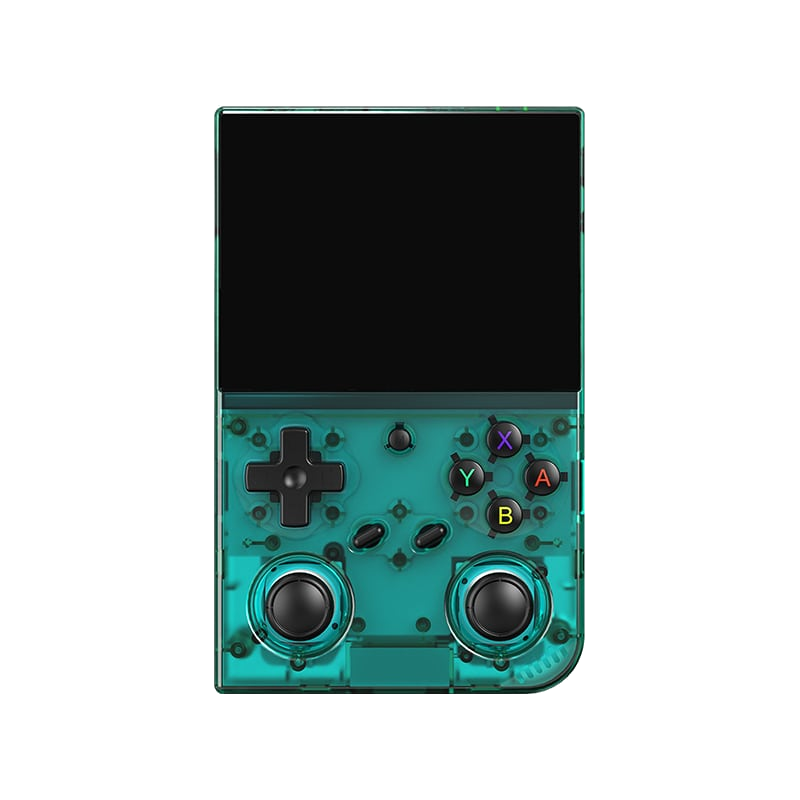
Anbernic RG35XX Pro
A horizontal handheld with the H700 chip — the sweet spot between price and performance.
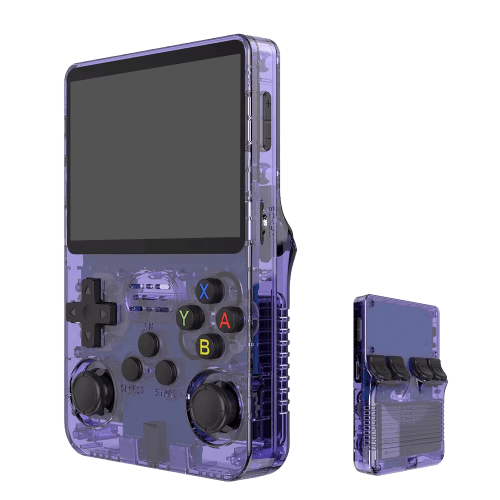
R36S
An affordable clone with a vertical display and an open system.

Batocera.linux
A Linux distribution that turns anything into a retro console — a PC, a Raspberry Pi, or a handheld.
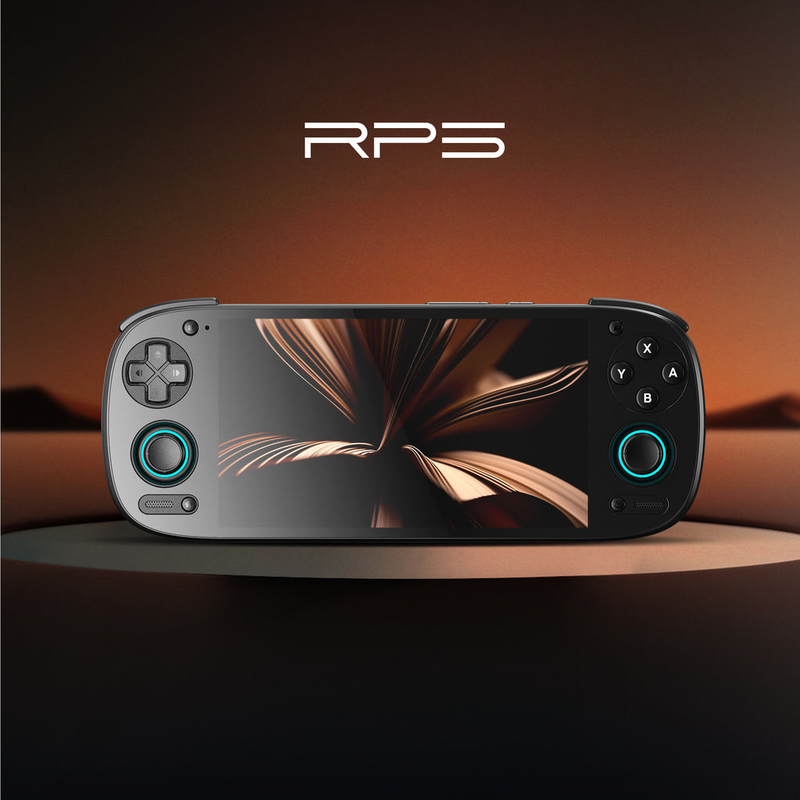
Android (boxy, TV i telefony)
Phone, TV box or Android TV — download an emulator from the store and play within minutes.
Emulace na PC
The most powerful and flexible path — from 8-bit all the way to PS2, GameCube and 3DS.
iOS (iPhone & iPad)
Since 2024, emulators run on iPhone and iPad too — straight from the App Store.
Emulace na konzolích (PS, Xbox, Switch)
Even a PlayStation, Xbox or Switch can be turned into a retro machine — through their homebrew scene.
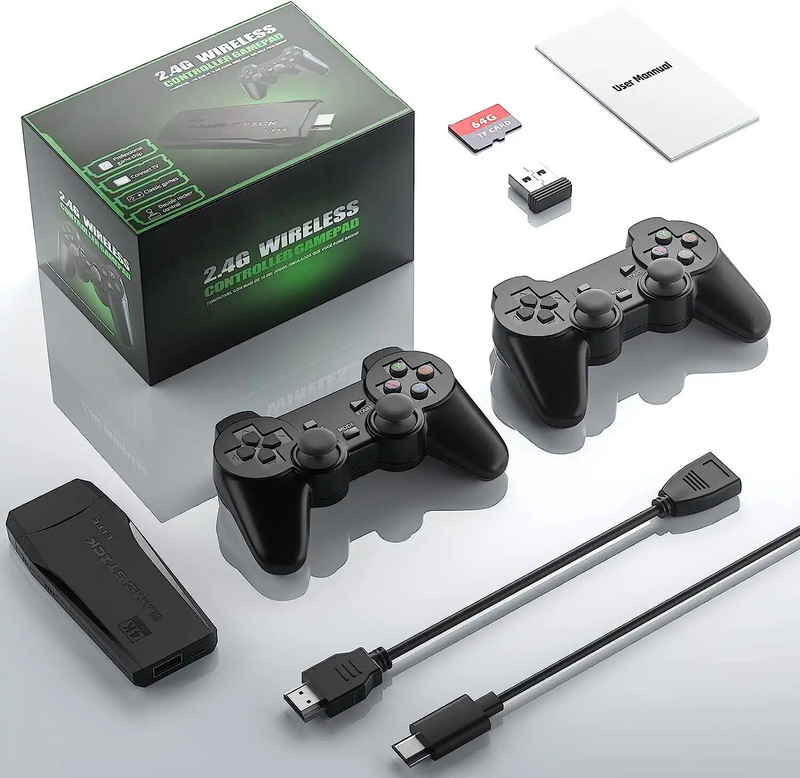
Game Stick (HDMI)
A cheap HDMI "stick" for your TV with a pair of wireless controllers — retro gaming with no setup.
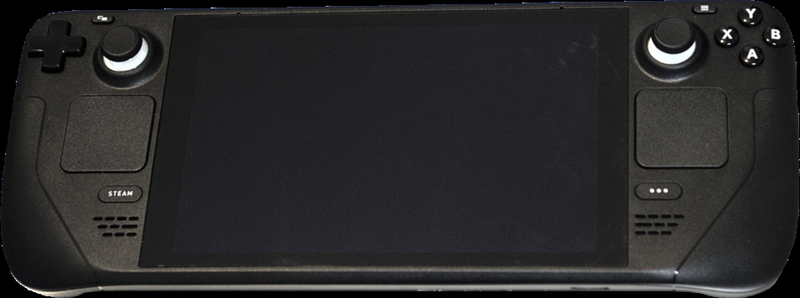
Steam Deck
A pocket gaming PC from Valve — and after a few minutes with EmuDeck, also the most powerful retro handheld you can get.
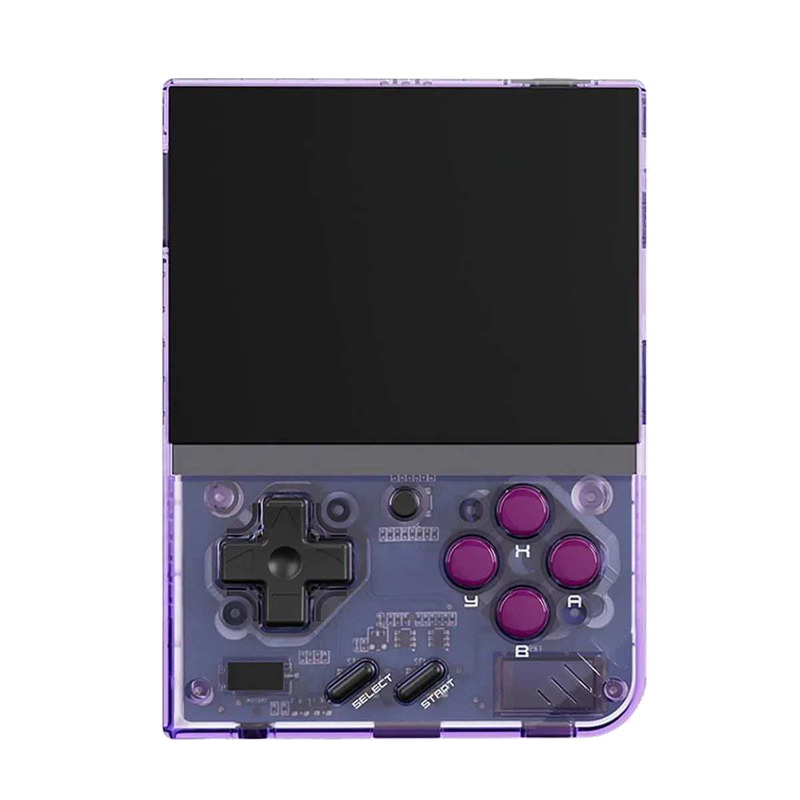
Miyoo Mini Plus
A tiny vertical keychain-sized pocket handheld with an amazing price-to-experience ratio and the community OnionOS.
ROMky: kde se berou hry pro emulátory
What a ROM is, how to obtain one legally, where the law stands, and why game preservation matters.
AYN Odin 2
Výkonný Android handheld ve stylu herního ovladače, ve víc výkonnostních variantách.
Miyoo A30
Vodorovná kapesní konzole ve stylu Game Boy Micro, ideální na NES až PS1 klasiku.
Miyoo Flip
Véčko ve stylu GBA SP s čipem RK3566 – zvládne i Dreamcast, i když ne vždy plynule.
Miyoo Mini V4
Čtvrtá revize levné legendy – stejný slabý čip, ale konečně vydrží baterie i Wi-Fi.
Powkiddy RGB30
Hranatý handheld se čtvercovým displejem a joysticky posazenými nad tlačítky místo vedle nich.
Retroid Pocket 4 Pro
Nejvýkonnější Retroid s AMOLED displejem, který se otáčí i na výšku.
Retroid Pocket 5
Levnější sourozenec Pocket 4 Pro s větším displejem a osvědčeným výkonem.
Retroid Pocket Mini
Kapesní konzole ve skutečně kapesní velikosti pro rychlé retro hraní odkudkoli.
Anbernic RG28XX
Nejmenší člen rodiny s čipem H700, kapesní tvar inspirovaný klasickými herními konzolemi.
Anbernic RG34XX
Sklápěcí tělo v duchu klasických konzolí s neobvyklým 3,4palcovým displejem.
Anbernic RG353M
Vodorovný sourozenec RG353V se stejným T618 čipem a asymetrickými páčkami à la Vita.
Anbernic RG353V
Svislý PDA tvar, duální Android/Linux boot a čip T618 v kapesním balení.
Anbernic RG35XX
Malá krabička, která v roce 2023 nastartovala vlnu levných linuxových retro handheldů.
Anbernic RG35XX H
První RG35XX s pořádnými analogovými páčkami, míří na 3D hry z Nintenda 64 a PSP.
Anbernic RG35XX Plus
Stejná krabička jako RG35XX, jen konečně s Wi-Fi a Bluetooth pro bezdrátové ovladače.
Anbernic RG35XX SP
Sklápěcí tvar jako Game Boy Advance SP – displej schovaný pod krytkou přímo v kapse.
Anbernic RG405M
Kovové tělo, klasické tlačítka bez dotykové obrazovky a čip Unisoc T618.
Anbernic RG405V
Celokovové tělo, čip Unisoc T618 a čistě linuxový systém bez Androidu a kompromisů.
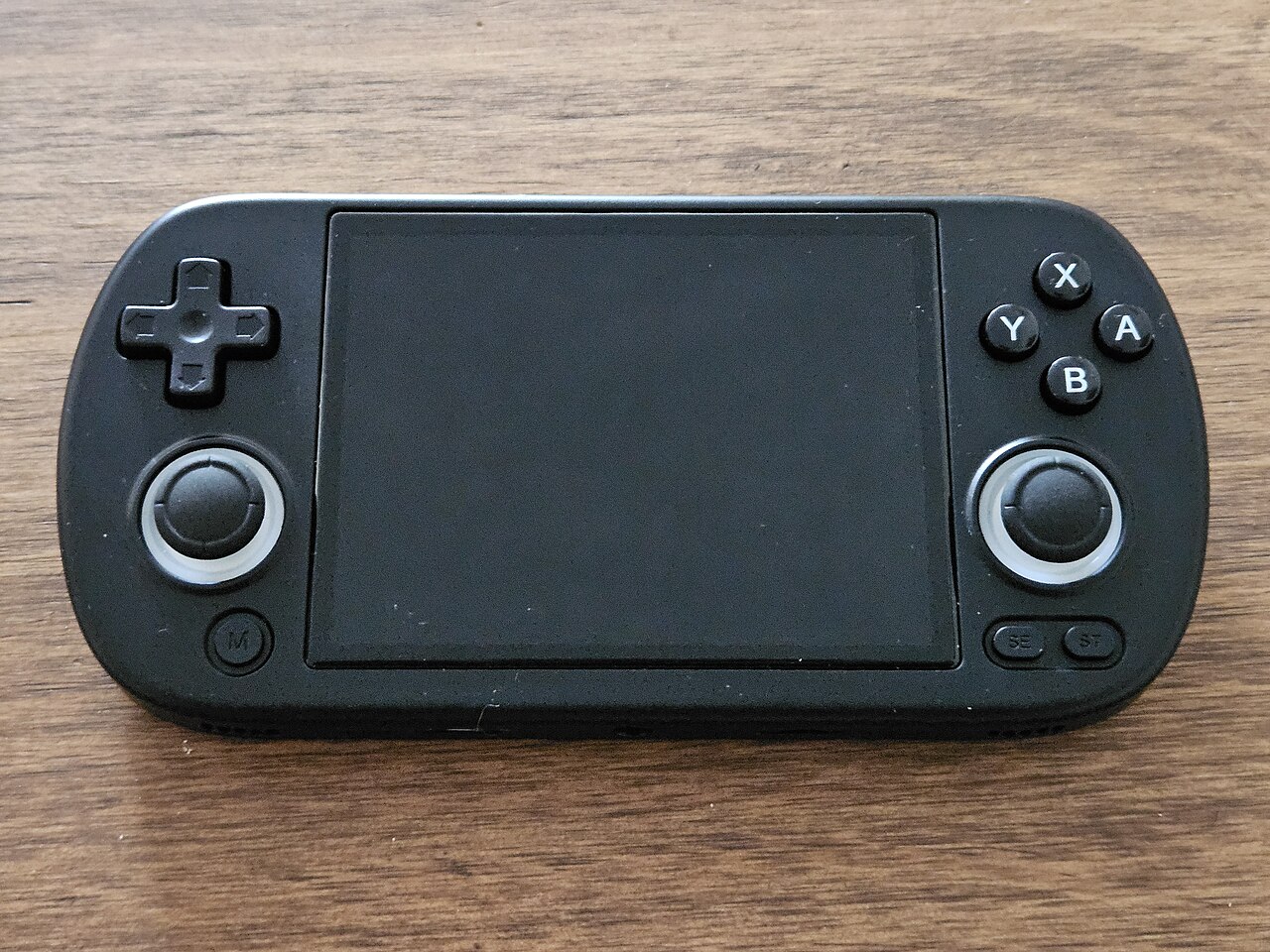
Anbernic RG40XX H
Vodorovná varianta se 4palcovým displejem a čipem H700 pro pohodlnější držení.
Anbernic RG40XX V
Svislá varianta ve tvaru připomínajícím klasický Game Boy, se stejným čipem jako model H.
Anbernic RG503
OLED displej, kovové tělo a čip RK3566 v klasickém tvaru herního ovladače.
Anbernic RG505
Tvar jako PS Vita, ale uvnitř skutečný Qualcomm Snapdragon 865 a AMOLED displej 960×544.
Anbernic RG556
Vlajková loď Anbernic s AMOLED displejem, čipem Unisoc T820 a duálním Android/Linux systémem.
TrimUI Brick
Vertikální handheld ve stylu Game Boye se stejnou elektronikou jako Smart Pro.
TrimUI Smart Pro
Malé tělo, velký 4,96" 16:9 displej a čip sdílený s TrimUI Brick.