Guide & emulators
Emulace na PC
The most powerful and flexible path — from 8-bit all the way to PS2, GameCube and 3DS.
RetroArch — jedno rozhraní, desítky systémů pod jednou střechou
The PC is the king of emulation: the most raw power, the most accurate emulators and the most tuning options. You can run practically anything on it — from the Atari 2600 to the PlayStation 2, GameCube, Wii or 3DS, as long as your machine is powerful enough. You can go the route of a single unified program (RetroArch), or use a top-tier standalone emulator for each platform; the best results come from combining both.
Specs
- System
- Windows, Linux and macOS
- Performance
- strong single-thread CPU; GPU with Vulkan/OpenGL for 3D
- All-in-one
- RetroArch (cores) + EmulationStation/EmuDeck
- Controllers
- Xbox, DualSense, 8BitDo (XInput plug & play)
- Frontends
- EmuDeck, LaunchBox, Playnite, ES-DE
What it runs
- SmoothlyAll 8/16-bit, handhelds, PS1, arcades, computers
- SmoothlyN64, PSP, Saturn, Dreamcast, DS
- MostlyPS2, GameCube, Wii, 3DS, Wii U/Switch (powerful PC)
What is PC emulation
PC emulation means using an ordinary computer (Windows, Linux or macOS) as a universal retro gaming console. Using software called an emulator, the computer mimics the hardware of the original machine — the processor, graphics and sound chips, memory and controllers — and thanks to that it can run the original game data (so-called ROMs on cartridge consoles or disc images ISO/CHD/BIN on CD/DVD platforms). Unlike ports and remasters, this runs the original code of the game, so the result is usually as faithful to the original as possible.
The PC is by principle the most powerful and most flexible emulation platform an enthusiast can acquire. While handheld consoles like the Anbernic RG35XX or Steam Deck have a fixed performance ceiling, on a desktop computer or gaming laptop performance can be scaled practically without limit — from eight-bit machines to newer systems like the PlayStation 3, Wii U or Nintendo Switch. The PC additionally offers a large monitor, a full keyboard and mouse for configuration, and the ability to connect any controller.
This guide is intended both for complete beginners who want to run a game from their childhood for the first time, and for advanced users who tune shaders, run-ahead latency and per-game configurations. We will focus on two main approaches: RetroArch (a unified interface that groups emulation cores under one roof) and standalone emulators like PCSX2, Dolphin, RPCS3 or Duckstation, which are often more accurate or more feature-rich for a particular platform.
It is important to mention right at the start the legal side of things: emulators themselves are legal software. What is usually illegal is downloading ROM and BIOS files for games you do not own. The correct path is to create your own dumps from the physical cartridges and discs you have at home (tools and hardware such as the Retrode or optical drives exist), or to use legal sources and homebrew works released by the authors themselves.
History and context
PC emulation has its roots in the nineties, when the first emulators of eight-bit and sixteen-bit machines began to appear. A legend is MAME (Multiple Arcade Machine Emulator) from 1997, whose goal was not so much playability as archiving and documenting arcade machines. In parallel, emulators such as NESticle, ZSNES, SNES9x arose, as well as the bsnes project by Near (formerly byuu), which raised the bar of SNES emulation accuracy to the cycle level.
Over time, two schools of thought emerged. The first emphasizes accuracy — faithfully mimicking the hardware even at the cost of higher requirements, as bsnes/higan or Mednafen do. The second bets on performance and enhancements (HD textures, upscaling, widescreen hacks), represented by emulators like Dolphin for the GameCube and Wii. Both approaches coexist today and the user chooses according to their priorities.
A turning point was the emergence of Libretro/RetroArch around 2010–2011. This project introduced the concept of cores: individual emulators are wrapped in a unified API and run inside a shared frontend. Thanks to this, the user gained unified controls, configuration, shaders, netplay and features like rewind or save states across dozens of systems. RetroArch fundamentally lowered the barrier to entry, though its controls have a reputation for being unfriendly to newcomers.
In recent years emulation has matured even for modern consoles. RPCS3 today runs a large part of the PlayStation 3 library, Dolphin is extremely mature for the GameCube/Wii, and around Nintendo Switch emulation (projects like Yuzu/Ryujinx) there were even legal disputes that led to their discontinuation in their original form. This shows that emulation is technically advanced but a legally sensitive area, where the source of games and BIOSes matters.
Hardware: what a PC needs
The key quantity for emulation is often the single-thread CPU performance, not the number of cores. Emulators must synchronously mimic the clocks of the original chips, which is a difficult-to-parallelize task. For older systems (up to the PS1/N64 era) practically any modern processor suffices. For the PS2 (PCSX2), GameCube/Wii (Dolphin) and especially the PS3 (RPCS3), a powerful core from an Intel Core i5/i7 or AMD Ryzen 5/7 of newer generations pays off; RPCS3 additionally benefits from the AVX-512 instruction set on some Ryzens, which noticeably increases performance.
The graphics card (GPU) matters mainly when you want to render at a higher resolution than the original (internal resolution 2x, 4x, 8x), use demanding shaders or widescreen. For 2D systems an integrated graphics chip suffices. For upscaling 3D titles from the PS2/GameCube to 1440p or 4K, a mid-range standalone NVIDIA GeForce or AMD Radeon card is useful. Support for modern graphics APIs is also important: Vulkan, Direct3D 11/12 and OpenGL — Vulkan tends to be the most advantageous for emulators due to low overhead.
System memory (RAM) is not critical for most emulation; 8 GB is a comfortable minimum, 16 GB is comfort, and only demanding scenarios (RPCS3, lots of HD texture packs) will appreciate more. For storage a fast SSD is suitable, because disc images on CD/DVD consoles are large and modern games take up gigabytes; to save space the compressed CHD format (Compressed Hunks of Data) is used instead of uncompressed BIN/CUE or ISO.
Unlike handheld consoles, a PC does not have cooling, battery or display solved in one body — that is double-edged. On a desktop PC the cooling and power supply are robust and quiet operation can be tuned, but you lose mobility. On a gaming laptop you gain portability but hit a thermal and power ceiling and shorter battery life. A specific category is the handheld PC (Steam Deck, ASUS ROG Ally, Lenovo Legion Go), which combines x86 performance with mobility and its own display and controllers.
Operating systems and platforms
The most widespread platform for emulation is Windows, because the most versions of emulators are aimed here and it has the least friction in getting controllers and graphics APIs running. The vast majority of standalone emulators (PCSX2, Dolphin, RPCS3, Duckstation, Cemu) have first-class support on Windows and updates often come out here first.
Linux is very popular among enthusiasts — it is free, lightweight and many emulators have a native Linux build (often distributed as a Flatpak via Flathub). On Linux there are also specialized gaming distributions and launchers: Batocera, RetroBat (a Windows overlay), Lakka (the official RetroArch distribution) or EmuDeck and RetroDECK for the Steam Deck. These systems can boot from a USB/SD card and turn a computer into a ready-made retro box without manual installation.
macOS lagged behind for a long time, but with the arrival of Apple Silicon chips (M1 and newer) the situation improved — RetroArch, Dolphin, OpenEmu (a friendly frontend for Mac) and others run natively on ARM and surprisingly performantly. Some more demanding emulators focused on x86 have limitations on the Mac or require rewriting through Rosetta/translation layers.
For users who want it to 'just work', ready-made solutions are ideal: EmuDeck automatically installs and configures a set of emulators, Batocera boots straight into a gaming menu, and RetroArch provides a unified interface for everything else. Advanced users, on the other hand, will appreciate assembling their own build from standalone emulators with a frontend like LaunchBox/BigBox, Playnite or ES-DE (EmulationStation Desktop Edition).
RetroArch versus standalone
RetroArch is a frontend built on the Libretro library. Its strength is uniformity: once you learn the controls and the Quick Menu, you control the NES, SNES, PS1 and arcades the same way. It offers, across cores, save states, rewind (rewinding time back), run-ahead to reduce input latency, unified shaders (CRT effects), netplay, automatic controller mapping and achievements via RetroAchievements. Everything runs in one window with consistent configuration.
Cores in RetroArch are ports of existing emulators: Mednafen/Beetle (PSX, Saturn, PC Engine, WonderSwan), Snes9x and bsnes (SNES), mGBA (Game Boy/Advance), Genesis Plus GX (Sega), Nestopia/Mesen (NES), FBNeo and MAME (arcades), PCSX ReARMed or SwanStation (PS1) and others. For some systems there are multiple cores in RetroArch with different ratios of accuracy and performance.
Standalone emulators, on the other hand, typically offer more features and top-tier compatibility for a given platform, because the developers are not limited by the Libretro API. Examples: PCSX2 (PS2), Dolphin (GameCube/Wii), RPCS3 (PS3), Duckstation (PS1, excellent interface and PGXP geometry correction), Cemu (Wii U), DeSmuME/melonDS (Nintendo DS), ScummVM (classic adventures) or Vita3K (PS Vita). For these platforms standalone is often recommended as the primary choice.
A practical rule: for 8/16-bit consoles, handheld consoles and arcades, RetroArch is great and convenient. For the PS2 and newer (GameCube, Wii, PS3, Wii U, DS, Saturn in more complex cases) reach rather for a standalone emulator that has the given system as its main focus. Many people combine both and link them with a shared frontend.
Compatibility by platform
Smoothly and without compromise even a weaker modern PC handles the whole classic era: NES, SNES, Master System, Mega Drive/Genesis, Game Boy/Color/Advance, PC Engine/TurboGrafx, Neo Geo, most arcades from MAME/FBNeo, and also the PlayStation 1 (Duckstation/Beetle PSX), Nintendo 64 (with caveats below) and Sega Saturn to a large extent. These systems are considered solved today and run even on office hardware.
Moderately demanding are the PlayStation 2 (PCSX2) and GameCube/Wii (Dolphin) — both emulators are mature and compatibility is approaching one hundred percent, but for upscaling and problematic titles you need a decent CPU and GPU. Nintendo DS (melonDS) runs well, PSP (PPSSPP) is very well solved and runs even on weaker hardware, Dreamcast (Flycast) is likewise in good condition.
Demanding and less perfect is the PlayStation 3 (RPCS3) — it works impressively but requires a strong processor and for individual games compatibility varies (check the official compatibility list). Wii U (Cemu) is well playable with popular titles. Xbox and Xbox 360 (xemu, Xenia) are works in progress — Xenia is still experimental in both performance and compatibility. Emulation of the Nintendo Switch and PS Vita is technically advanced but complicated both legally and practically.
Beware of pitfalls: the Nintendo 64 is notoriously difficult for accuracy due to RDP/RSP graphics and microcodes — modern cores like ParaLLEl (Vulkan, accurate RDP) or the emulator Mupen64Plus/simple64 have significantly improved the situation today, but some games still require specific settings. In general it holds that the more accurate the emulation, the higher the requirements and the fewer 'enhancement' tricks.
Controls and ergonomics
A great advantage of the PC is the freedom to choose a controller. Practically anything works: the Xbox controller (best supported thanks to XInput), the DualShock 4 / DualSense from Sony (via USB and Bluetooth, the DualSense even offers haptics in some scenarios), 8BitDo controllers (popular for the retro feel and compatibility), or specialized replicas like the 8BitDo SN30 Pro and arcade fightsticks for fighting games and beat 'em ups.
RetroArch has a robust system of autoconfig profiles, so it recognizes and maps common controllers itself. With standalone emulators the mapping is done manually in the settings, which gives full control (for example mapping the analog sticks to the N64 C-buttons). For authenticity there are adapters for original controllers — for instance the official USB adapter for the GameCube controller, which Dolphin supports including rumble and precise sensitivity, ideal for Smash Bros.
Specific systems have specific needs: the Wii requires motion controls — either a real Wiimote paired via Bluetooth (Dolphin can do this), or emulation of motions via the right analog stick. The Nintendo DS and consoles with touch are handled by mouse or touchscreen. Light-gun games (Time Crisis) can be controlled with a mouse. A keyboard and mouse are additionally essential for computer platforms like DOS (DOSBox) or Amiga.
From an ergonomics standpoint it is good to think about input latency. A PC with an emulator can add delay compared to the original due to the rendering pipeline and display synchronization. The run-ahead feature in RetroArch helps (speculative simulation of frames ahead), a G-Sync/FreeSync monitor, disabling V-Sync in favor of low-latency modes, and a gaming monitor with a high refresh rate.
Image, sound and shaders
Here the PC excels. On older consoles once connected to a CRT television, a 'bare' pixel image looks different on a modern LCD than the creators intended. That is why shaders are used: a group of CRT shaders (crt-royale, crt-guest-advanced, crt-lottes, crt-easymode) mimics scanlines, the phosphor mask, slight blur and afterglow, giving 2D graphics their original 'soft' and color-rich appearance. For handheld consoles there are LCD/handheld shaders with a pixel grid.
Conversely, for 3D titles the PC allows the image to be significantly improved beyond the original: rendering at an internal resolution of 2x up to 8x (from 240p/480i to sharp 1080p, 1440p and 4K), anisotropic filtering, edge antialiasing, geometry correction on the PS1 via PGXP (removes the typical 'floating' and jittery textures), widescreen hacks (16:9 instead of 4:3) and community HD texture packs. It is good to distinguish when you want an authentic CRT look and when, conversely, maximum sharpness.
An important parameter is the correct aspect ratio and integer scaling. For a pixel-clean image without distortion, integer scaling is used (each original pixel is enlarged by the same multiple), the choice between the original 4:3 ratio and 'PAR' correction, and on systems with overscan a cropping of the edges. These details decide whether the image feels faithful or blurry and unnaturally stretched.
On the sound side the goal is correct synchronization of sound with the image and avoiding crackling when performance fluctuates. Emulators handle sound via low-latency outputs (WASAPI on Windows, PulseAudio/PipeWire on Linux). On some systems (Saturn, PS1) the accuracy of the sound chip emulation has a large influence; an inaccurate core can cause missing or garbled effects. In general it holds that a stable full speed of emulation = clean sound.
Accessories and TV output
Because a PC does not have a built-in gaming display (except for handheld PCs), a TV and monitor are an essential accessory. For a retro 'couch' mode it is useful to connect the PC to a television via HDMI and control it from the sofa with a wireless controller — a frontend with large tiles (ES-DE, BigBox, Steam Big Picture) turns this into a console experience. For maximum authenticity there are even enthusiasts connecting a PC to a real CRT television via a converter or a special output (CRT EmuDriver / VGA), where shaders are not needed.
Popular accessories include wireless controllers and receivers (the 8BitDo wireless adapter can pair various pads), arcade fightsticks and complete arcade cabinets/bartops built around a mini PC. For local multiplayer a USB hub or more ports is useful so that four controllers can be connected at once (Mario Kart, Bomberman, Smash Bros).
Multiplayer gaming is a strong point on the PC. Locally you can connect multiple controllers and play split-screen and four-player exactly like on the original. RetroArch and many standalone emulators additionally support netplay — network play over the internet, where two players connect remotely in the same session (host and client). This makes it possible to play co-op or versus even with a friend on the other side of the world.
Of further equipment it is worth having quality SD cards and SSDs for the game library, external drives for backups, and for a handheld PC protective cases and power banks. For 'dumping' your own games there are devices like the Retrode (a cartridge reader), optical drives for CD/DVD titles or special readers for Game Boy cartridges (GBxCart), thanks to which you legally transfer your own games to the PC.
Setup step by step
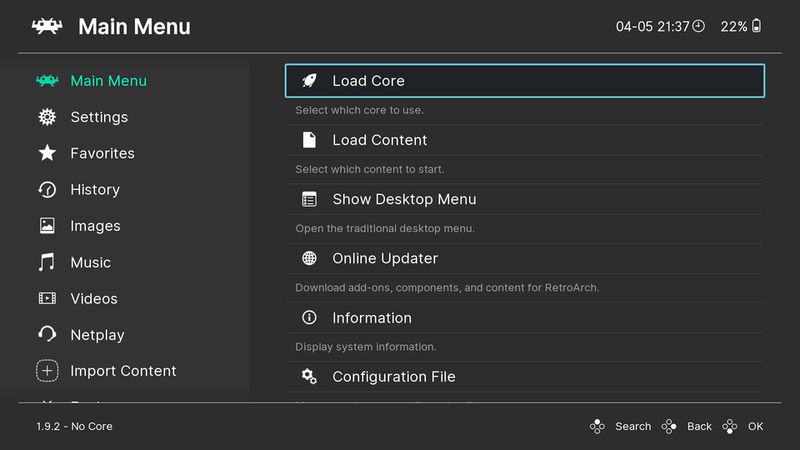
1) Installing the frontend/emulator. For an easy start, download RetroArch from the official website (retroarch.com) or via Steam. After launching, go to the Online Updater and download the necessary cores, info files and thumbnails. For demanding platforms download the corresponding standalone emulator (PCSX2, Dolphin, Duckstation, RPCS3) from their official pages. On the Steam Deck/Linux consider EmuDeck, which sets everything up automatically.
2) BIOS files. Some systems require a BIOS/firmware for correct function: PlayStation 1/2 (SCPH BIOS), Sega Saturn, Sega CD, PSP, Dreamcast, GameCube IPL, etc. You must legally extract these files from your own console (there are homebrew tools for this) — do not download them from the internet. Place them in the system folder (in RetroArch typically the system folder, with standalone emulators in their BIOS/bios directory) and verify the checksums (MD5).
3) Games (ROM/ISO). Create a clearly structured folder layout by systems. Insert your own legal dumps of games. To save space, convert CD/DVD images to the CHD format with the chdman tool (part of the MAME tools). In RetroArch then in Import Content / Scan Directory you let the games be scanned and playlists created; with standalone emulators you just set the path to the games.
4) Scraping and controller. For a nice appearance with covers, descriptions and videos use a scraper (ES-DE has a built-in one, Skraper or Screenscraper are also popular), which downloads metadata and images. Finally connect and map a controller: RetroArch recognizes most automatically, otherwise go through Settings → Input. I recommend also setting a hotkey (e.g. a combination for the menu, save/load state and quick exit), so that functions can be controlled cleanly from the pad.
Models, revisions and variants
Unlike one specific device, 'PC emulation' exists in many variants depending on the hardware. At one end of the spectrum is a lightweight mini PC or older laptop suitable for 8/16-bit, arcades and the PS1 — cheap, quiet, ideal for a retro box. In the middle stands an ordinary gaming PC (Ryzen 5 / Core i5 with a dedicated graphics card), which handles the PS2, GameCube, Wii and most PS3 titles with upscaling.
At the other end is a high-end build with the latest powerful CPU (a strong single-core is important, possibly AVX-512 for RPCS3) and a powerful graphics card for 4K upscaling, HD texture packs and the most demanding PS3 or Wii U titles. This build can handle practically anything that today's emulation can do.
A special and very popular category is the handheld PC: the Valve Steam Deck (excellent price/performance ratio, official EmuDeck/RetroDECK support, Linux-based SteamOS) is today the de facto reference portable emulation device. It is rivaled by the ASUS ROG Ally, Lenovo Legion Go and machines from GPD or AYANEO, mostly on Windows. They offer x86 performance in your pocket, so they can handle even the PS2 and GameCube on the go.
There are also specialized 'appliance' variants: Batocera or Lakka installed on an SD/USB turn any PC into a bootable retro console without Windows. For cabinet enthusiasts, bartop and arcade builds around a Raspberry Pi or mini PC are popular, although the Raspberry Pi is ARM, not x86, and has a different performance ceiling.
Common problems and solutions
The game runs slowly or choppily. Most often this is a weak CPU for the given system (PS2/PS3) or too high an internal resolution. Solution: lower the internal resolution, switch the graphics API (try Vulkan instead of OpenGL/D3D), in RPCS3/PCSX2 apply settings according to the wiki, check that you do not have a power-saving mode enabled (set 'High performance') and update the graphics drivers.
Graphics are missing, black screen or the game does not boot. Often the BIOS is missing or wrong, or the dump of the game is faulty/incorrect (check the checksums via the No-Intro/Redump database). On the PS1 try a different core/emulator, on the Saturn a more accurate core. It pays to look at the emulator's official compatibility list to see whether the game is not known as problematic.
Jittery or floating textures and geometry (PS1). This is a typical artifact of the original hardware without floating-point precision. Enable PGXP in Duckstation/Beetle PSX, possibly 'subpixel precision'. Crackling sound usually indicates that the emulation is not running at full speed, or that the audio buffer/latency is set wrong — increase the buffer or switch the audio backend (WASAPI).
The controller does not work or is mapped wrong. Check whether Windows sees the pad (joy.cpl), in RetroArch do a rebind in Input, with the DualSense/DS4 a tool like DS4Windows or Steam Input helps. Input latency is solved by run-ahead, disabling unnecessary post-processing and vsync tuning. And in general: before you solve a problem manually, look at the wiki and forums of the given emulator — most bugs have a documented solution.
Community and where to seek help
The emulation scene has an extensive and active community. For RetroArch and Libretro the center is the official documentation (docs.libretro.com), a forum and a large Discord server, where specific cores and shaders can be addressed. Every major standalone emulator has its own website with a wiki, forum and Discord: Dolphin (dolphin-emu.org with a detailed wiki and per-game compatibility), PCSX2, RPCS3 (with a careful compatibility list) and Duckstation.
For general questions, guides and news the best are subreddits like r/emulation, r/RetroArch, r/SteamDeck and r/EmuDeck, where people share configurations, solve problems and recommend settings. For the Steam Deck and handheld PCs a huge resource is the EmuDeck documentation and community, which keeps pace with updates.
Also useful are databases of games and dumps for verifying integrity: No-Intro (cartridge ROMs) and Redump (optical discs) maintain accurate checksums of correct dumps, so you can tell whether you have the correct file. For RetroAchievements (game achievements in emulation) there is a dedicated website and community that adds achievements to classic games.
On YouTube and in text guides you will find quality content from creators focused on emulation and 'best settings' for specific systems. I recommend always preferring the official sources of emulators and reputable community wikis over random videos, because emulation evolves rapidly and older guides may be outdated (different cores, different settings).
Alternatives and comparison
The main alternative to the PC is handheld retro consoles based on ARM (Anbernic RG35XX Pro, R36S, Miyoo Mini, RG405 and similar) running on Linux or Android. They are cheap, small and battery-powered, but have a fixed performance ceiling — typically they handle up to the PS1/PSP/Dreamcast, more demanding systems no longer. The PC is more expensive and less mobile compared to them, but incomparably more powerful and flexible in performance.
The second alternative is original consoles with flash cartridges (Everdrive) or modification — they offer one hundred percent authenticity and zero emulation artifacts, but they lack enhancements like save states, upscaling, shaders, rewind or netplay and are limited to their single platform. The PC, on the other hand, unifies hundreds of systems into one device with modern features.
The third option is official mini consoles (NES/SNES/PlayStation Classic, Mega Drive Mini) and paid retro services (Nintendo Switch Online). They are legal and user-friendly but offer only a preselected library and limited options. A specific category is the handheld PC (Steam Deck), which blurs the difference between a PC and a handheld console — it is a full-fledged x86 PC, just in portable form.
The comparison therefore comes out like this: if you want maximum performance, flexibility, the best image and a complete library of systems, the PC is the clear choice. If you want mobility and a low price, reach for an ARM handheld or Steam Deck. If you want absolute authenticity, stick with original hardware. Many enthusiasts eventually own a combination — a PC at home and a small handheld for travel.
Who it is suitable for
PC emulation is suitable for anyone who already owns a computer and wants to enter retro gaming without buying another device — it is enough to download RetroArch or an emulator and begin. It is ideal for demanding enthusiasts who want 4K upscaling, HD texture packs, perfect CRT shaders, the lowest possible latency and to play even newer systems like the PS2, GameCube, Wii or PS3, which handheld consoles cannot handle.
It is also suitable for archivists and collectors who want to legally dump their own physical games and preserve them, and for multiplayer gamers who will appreciate local four-player at the TV as well as online netplay with friends. For content creators and streamers the PC is the only platform that can handle recording, overlay and high image quality at the same time.
Conversely, the PC is less suitable for someone who wants above all mobility and gaming in the hand on the couch or on the go — there a cheap ARM handheld or Steam Deck serves better. Likewise, for a complete layperson who does not want to configure anything, a full PC with manual assembly of emulators can be needlessly complicated; for such a user a ready-made solution (EmuDeck, Batocera) or an official mini console is better.
In closing, a reminder of legality and ethics: emulators are legal, but acquire games and BIOSes from your own dumps or legal sources, do not support piracy. Emulation is a wonderful tool for preserving gaming history, education and rediscovering classics — and the PC is its most powerful platform. With sensible settings and respect for the authors, you will enjoy practically the entire history of video games on it in a single device.
More guides
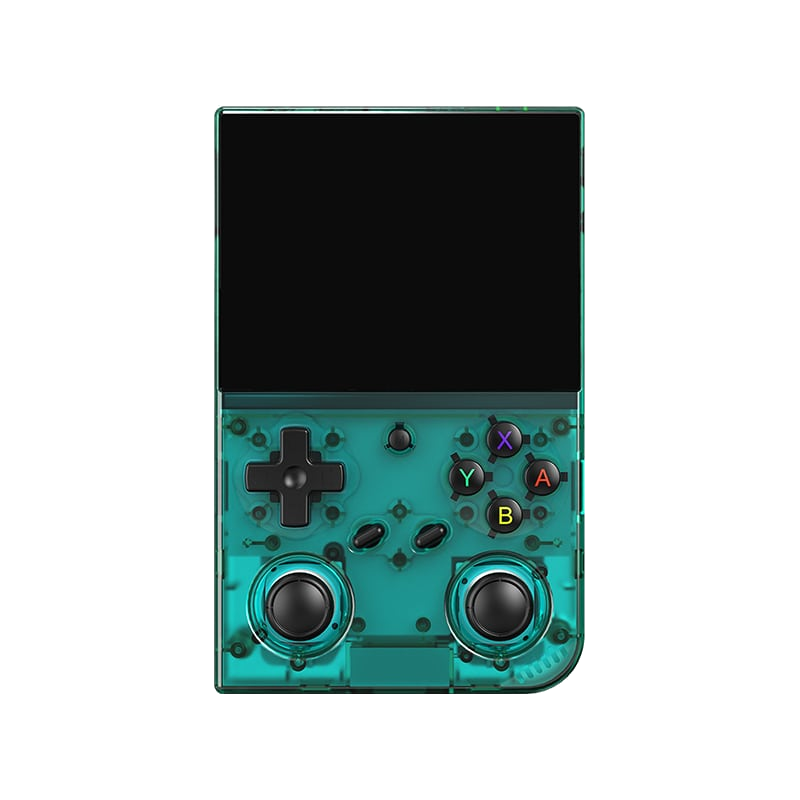
Anbernic RG35XX Pro
A horizontal handheld with the H700 chip — the sweet spot between price and performance.
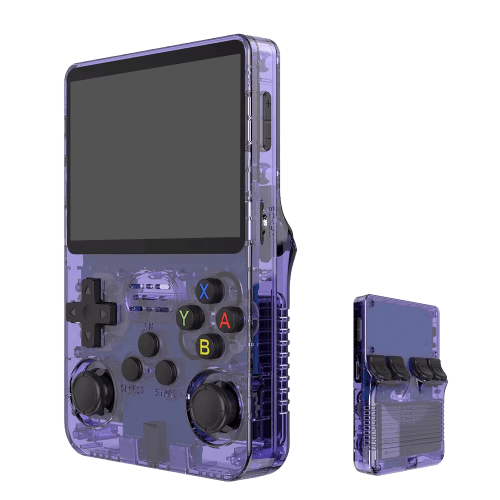
R36S
An affordable clone with a vertical display and an open system.
Batocera.linux
A Linux distribution that turns anything into a retro console — a PC, a Raspberry Pi, or a handheld.
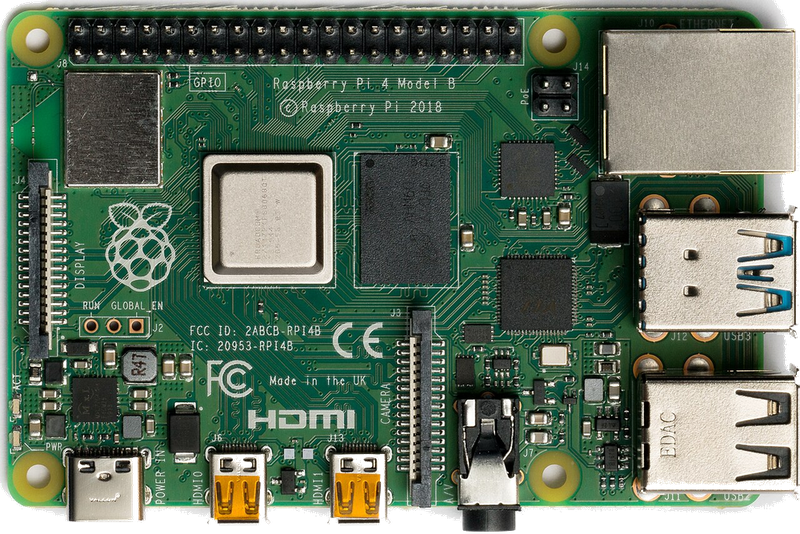
Raspberry Pi & spol.
A cheap box the size of a deck of cards that you can turn into a retro console for your TV.
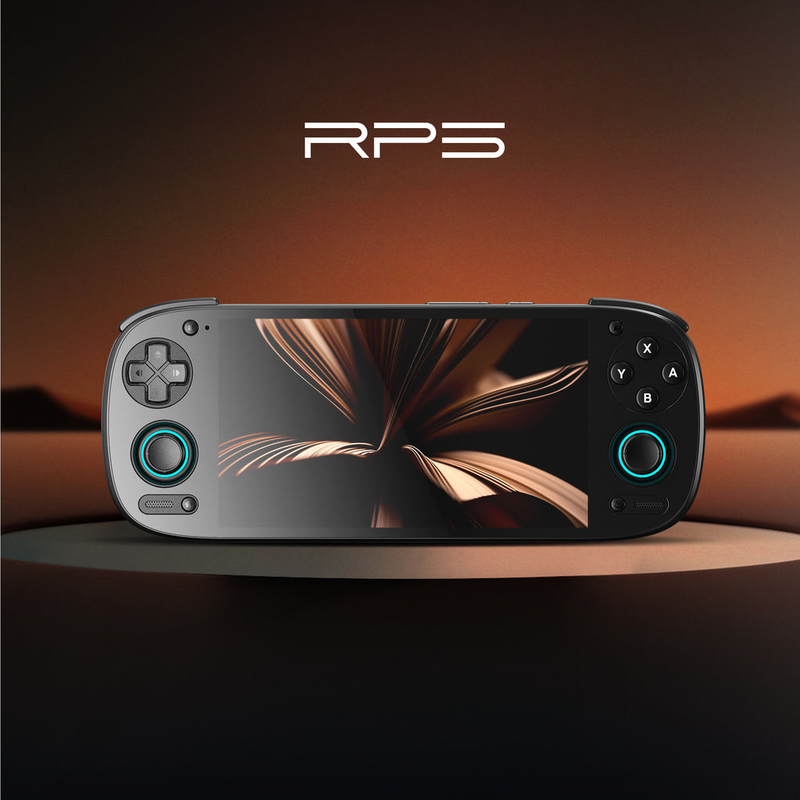
Android (boxy, TV i telefony)
Phone, TV box or Android TV — download an emulator from the store and play within minutes.
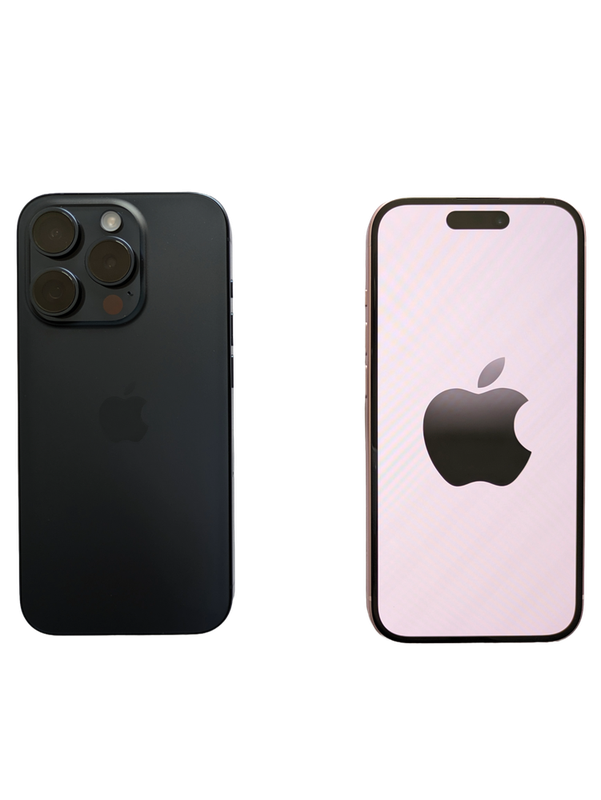
iOS (iPhone & iPad)
Since 2024, emulators run on iPhone and iPad too — straight from the App Store.
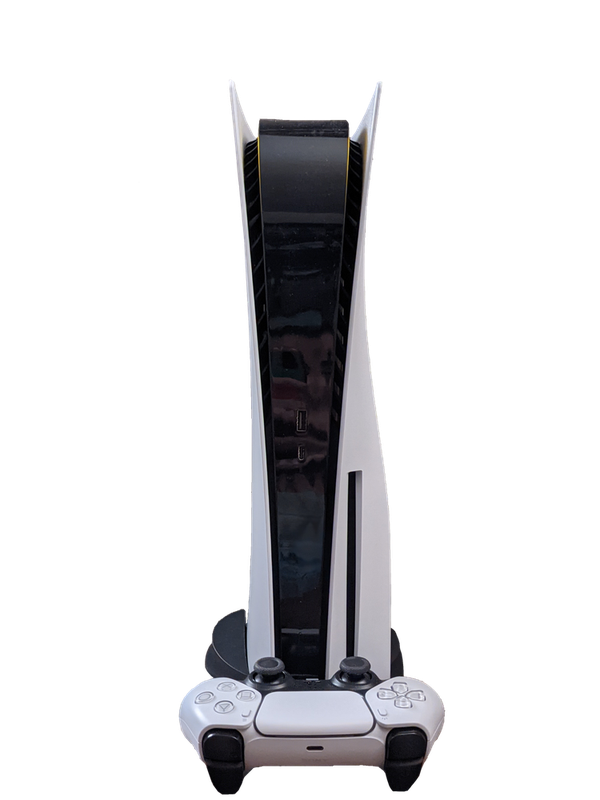
Emulace na konzolích (PS, Xbox, Switch)
Even a PlayStation, Xbox or Switch can be turned into a retro machine — through their homebrew scene.
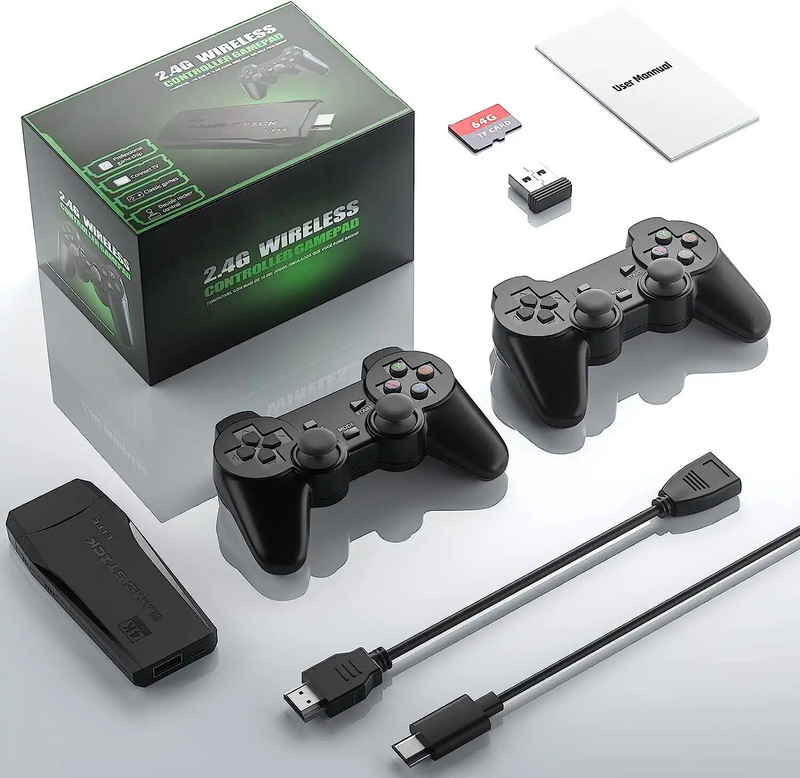
Game Stick (HDMI)
A cheap HDMI "stick" for your TV with a pair of wireless controllers — retro gaming with no setup.
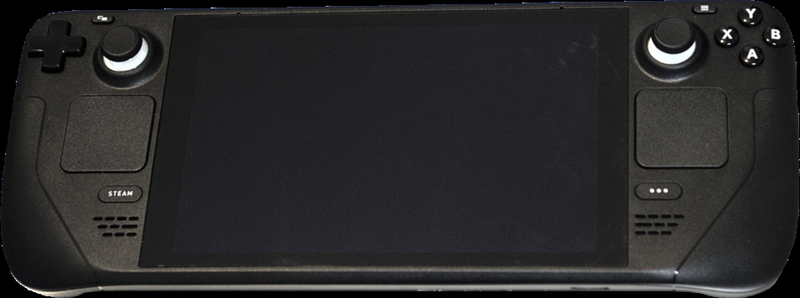
Steam Deck
A pocket gaming PC from Valve — and after a few minutes with EmuDeck, also the most powerful retro handheld you can get.
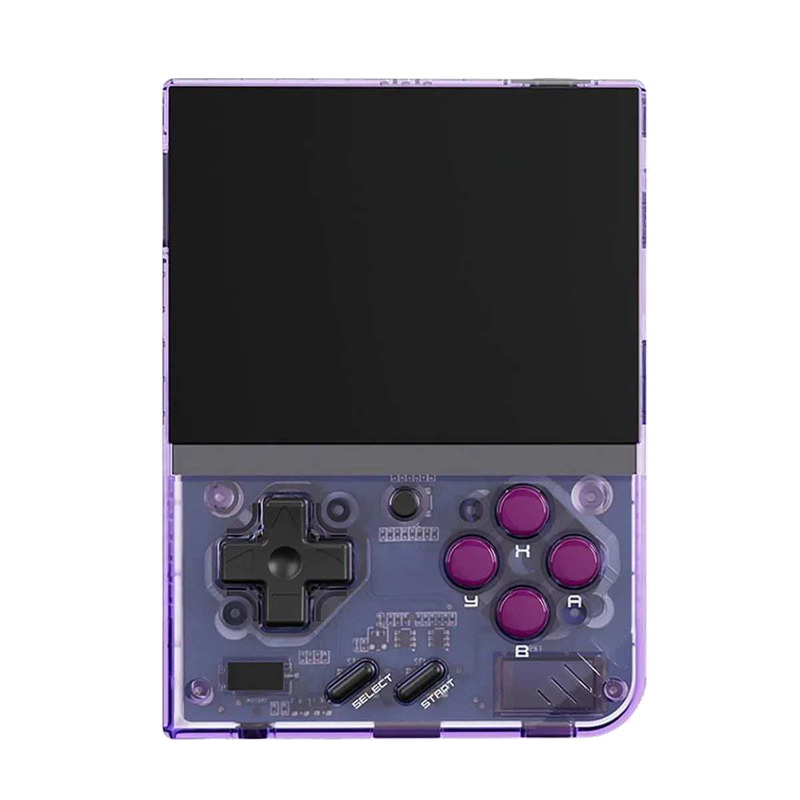
Miyoo Mini Plus
A tiny vertical keychain-sized pocket handheld with an amazing price-to-experience ratio and the community OnionOS.
ROMky: kde se berou hry pro emulátory
What a ROM is, how to obtain one legally, where the law stands, and why game preservation matters.
AYN Odin 2
Výkonný Android handheld ve stylu herního ovladače, ve víc výkonnostních variantách.
Miyoo A30
Vodorovná kapesní konzole ve stylu Game Boy Micro, ideální na NES až PS1 klasiku.
Miyoo Flip
Véčko ve stylu GBA SP s čipem RK3566 – zvládne i Dreamcast, i když ne vždy plynule.
Miyoo Mini V4
Čtvrtá revize levné legendy – stejný slabý čip, ale konečně vydrží baterie i Wi-Fi.
Powkiddy RGB30
Hranatý handheld se čtvercovým displejem a joysticky posazenými nad tlačítky místo vedle nich.
Retroid Pocket 4 Pro
Nejvýkonnější Retroid s AMOLED displejem, který se otáčí i na výšku.
Retroid Pocket 5
Levnější sourozenec Pocket 4 Pro s větším displejem a osvědčeným výkonem.
Retroid Pocket Mini
Kapesní konzole ve skutečně kapesní velikosti pro rychlé retro hraní odkudkoli.
Anbernic RG28XX
Nejmenší člen rodiny s čipem H700, kapesní tvar inspirovaný klasickými herními konzolemi.
Anbernic RG34XX
Sklápěcí tělo v duchu klasických konzolí s neobvyklým 3,4palcovým displejem.
Anbernic RG353M
Vodorovný sourozenec RG353V se stejným T618 čipem a asymetrickými páčkami à la Vita.
Anbernic RG353V
Svislý PDA tvar, duální Android/Linux boot a čip T618 v kapesním balení.
Anbernic RG35XX
Malá krabička, která v roce 2023 nastartovala vlnu levných linuxových retro handheldů.
Anbernic RG35XX H
První RG35XX s pořádnými analogovými páčkami, míří na 3D hry z Nintenda 64 a PSP.
Anbernic RG35XX Plus
Stejná krabička jako RG35XX, jen konečně s Wi-Fi a Bluetooth pro bezdrátové ovladače.
Anbernic RG35XX SP
Sklápěcí tvar jako Game Boy Advance SP – displej schovaný pod krytkou přímo v kapse.
Anbernic RG405M
Kovové tělo, klasické tlačítka bez dotykové obrazovky a čip Unisoc T618.
Anbernic RG405V
Celokovové tělo, čip Unisoc T618 a čistě linuxový systém bez Androidu a kompromisů.
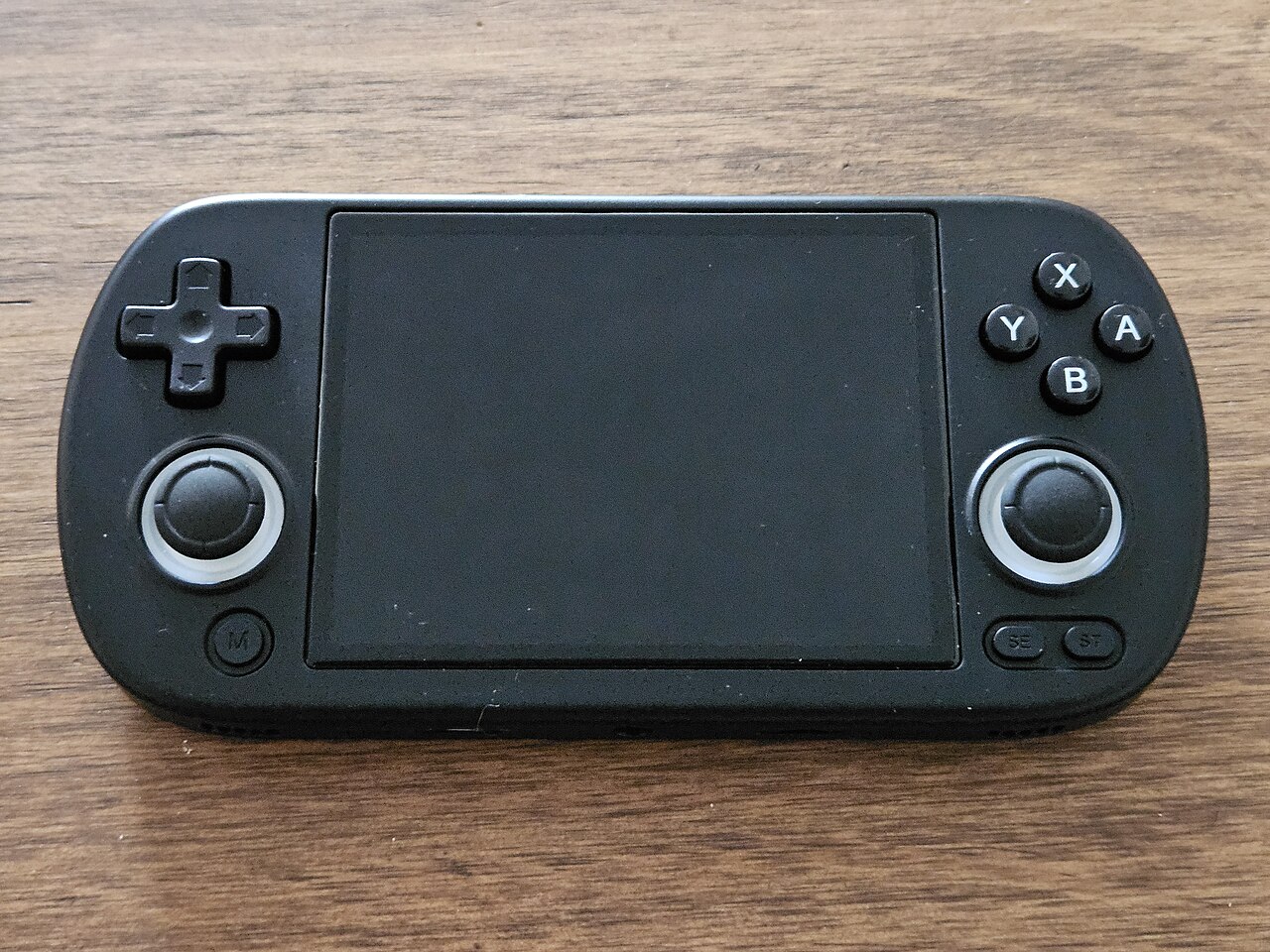
Anbernic RG40XX H
Vodorovná varianta se 4palcovým displejem a čipem H700 pro pohodlnější držení.
Anbernic RG40XX V
Svislá varianta ve tvaru připomínajícím klasický Game Boy, se stejným čipem jako model H.
Anbernic RG503
OLED displej, kovové tělo a čip RK3566 v klasickém tvaru herního ovladače.
Anbernic RG505
Tvar jako PS Vita, ale uvnitř skutečný Qualcomm Snapdragon 865 a AMOLED displej 960×544.
Anbernic RG556
Vlajková loď Anbernic s AMOLED displejem, čipem Unisoc T820 a duálním Android/Linux systémem.
TrimUI Brick
Vertikální handheld ve stylu Game Boye se stejnou elektronikou jako Smart Pro.
TrimUI Smart Pro
Malé tělo, velký 4,96" 16:9 displej a čip sdílený s TrimUI Brick.