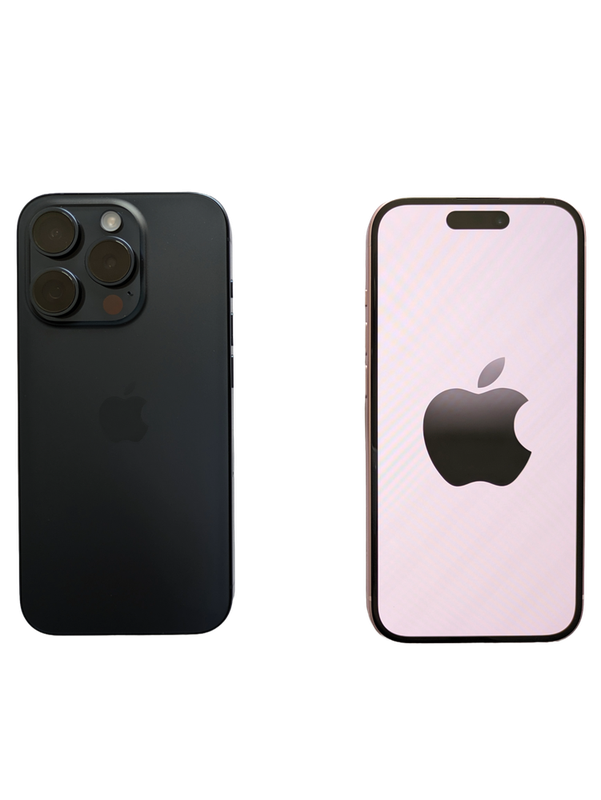
Mobile platform
iOS (iPhone & iPad)
Since 2024, emulators run on iPhone and iPad too — straight from the App Store.
iPhone — emulátory dnes míří i do App Storu
For a long time, emulation on iPhone and iPad was mostly for the hardcore (via complicated workarounds), but that changed in 2024: Apple allowed retro gaming emulators directly in the App Store. Today you download an app with a single tap like any other and start playing. iPads with M-series chips are also so powerful that they can handle even the more demanding consoles.
Specs
- Device
- iPhone, iPad (ideally with an A15+/M chip)
- Key apps
- Delta, RetroArch, PPSSPP, DuckStation, Provenance
- Controller
- Bluetooth (Xbox, DualSense, 8BitDo, Backbone)
- Games
- via the Files app, iCloud or AirDrop
- Output
- the screen, or a TV via AirPlay / USB-C
What it runs
- SmoothlyNES, SNES, N64, GB/GBC/GBA, DS (Delta)
- SmoothlyPlayStation (PS1), PSP
- MostlyDreamcast, Saturn
- Select titlesGameCube, Wii, PS2 (iPad M, via sideload)
What is emulation on iOS
The term emulation on iOS refers to running games from classic gaming consoles and computers directly on Apple devices — that is, on iPhones and iPads (and marginally also on earlier generations of the iPod touch). Instead of a dedicated retro handheld such as an Anbernic or a Steam Deck, the emulation machine here is the phone you already carry in your pocket. Thanks to the power of modern Apple Silicon (the A and M series) chips, an iPhone can effortlessly handle everything from 8-bit consoles to more demanding systems such as the PlayStation Portable, Nintendo DS, Dreamcast, and even — with some reservations — the GameCube and PlayStation 2.
The target audience consists of players who want to have retro games at hand at all times without having to carry a second device, as well as people within the Apple ecosystem who appreciate the high-quality OLED displays, long battery life, and excellent sound of their phones. The iPad then offers a large screen ideal for games that benefit from a bigger canvas — strategy titles, RPGs, or games designed for a stylus (Apple Pencil), such as the Nintendo DS with its touch layer.
For many years, the fundamental difference between iOS and Android or Linux-based handhelds lay in the closed nature of the platform. Apple historically did not tolerate emulators in the App Store, so the community had to find workarounds (sideloading, developer certificates, AltStore). This changed dramatically starting in 2024, however, and today emulation on iOS is, for the first time in history, officially permitted and relatively accessible even to the ordinary user.
History and context
A community around emulation on iOS has existed practically since the arrival of the App Store in 2008, though always at a semi-official or even underground level. Emulators did occasionally appear in the store (for example GBA4iOS or various variants), but Apple regularly pulled them for violating its rules, which prohibited running "foreign executable code". Players therefore relied for years on sideloading — installing apps outside the App Store using a developer certificate, the Xcode tool, services such as AltStore or SideStore, or earlier also via enterprise certificates, which Apple repeatedly revoked.
A key milestone was the jailbreak — unlocking system restrictions, which made it possible to install anything through alternative stores such as Cydia. With each new version of iOS, however, jailbreaking grew weaker, became unavailable for the newest devices, and ceased to be a realistic path for the ordinary user. Emulation thus remained the domain of enthusiasts willing to re-sign their apps every seven days (the limit of a freely issued developer certificate).
A huge turning point came at the beginning of 2024. Under pressure from the European Digital Markets Act (DMA) regulation, Apple both allowed alternative app stores in the EU and — this being a global change — amended the App Store rules so that they newly explicitly permitted emulators of retro gaming consoles. Shortly afterward, Delta by developer Riley Testut (author of the original GBA4iOS) appeared in the official store and immediately became a hit, followed by other titles such as RetroArch, Provenance, and PPSSPP.
This shift means that today's iPhone is a legitimate, full-fledged emulation platform. Certain limits still apply here compared with open systems, however: some emulators for more demanding consoles (PS2, Wii) are missing on iOS or are less mature than on PC, and Apple continues to disallow downloading ROMs directly from within an app — the user has to supply the files themselves.
Hardware: chip and performance
The heart of every iPhone and iPad is an SoC from the Apple Silicon family. iPhones use chips from the A series (for example the A15 Bionic in the iPhone 13/14, the A16 in the iPhone 14 Pro/15, the A17 Pro in the iPhone 15 Pro, the A18/A18 Pro in the iPhone 16), while the more powerful iPads (Pro and the newer Air) share chips from the M series (M1, M2, M4) identical to those in Mac computers. These processors have long ranked among the absolute best in the mobile world — their high single-core performance is crucial for emulation, because most emulators are sensitive precisely to the strength of a single thread.
The architecture is ARM (AArch64) with high-performance and efficiency cores. Raw CPU power is decisive for emulation, because the emulator must translate the instructions of a foreign console in real time. Modern emulators on iOS use a technique called JIT (Just-In-Time compilation), which dramatically increases performance — but JIT was historically a problem on iOS, because the system normally prohibits apps from executing dynamically generated code. Some emulators therefore run in a slower interpretation mode on a non-jailbroken device, or require special tricks (JIT via remote debugging, AltJIT) to unlock full performance.
The GPU is integrated, developed directly by Apple, and supports the Metal graphics API. This matters for emulators that render graphics through the Metal layer (for example newer versions of RetroArch, Dolphin, or MoltenVK translating Vulkan to Metal). The resulting graphics performance of a Pro iPhone, and especially of an iPad Pro with an M chip, is so high that it is not a limiting factor even for the GameCube or Wii — the obstacle tends to be the availability and quality of the emulator itself and the state of JIT.
Display, memory, battery, and ports
The Pro iPhones and the newer standard models have OLED displays (Super Retina XDR) with excellent blacks, high brightness, and — on the Pro models — a ProMotion refresh rate of up to 120 Hz, which delivers a smoother image and makes it easier to match the emulator's frame rate to the display. Sizes range roughly from 6.1" to 6.9" (Pro Max). iPads offer 11" to 13" panels, with the iPad Pro newly using a tandem OLED (Ultra Retina XDR); the larger surface is an advantage for games with maps, text, or touch controls (DS, point-and-click adventures).
The RAM in iPhones typically ranges between 6 and 8 GB, and up to 16 GB in the iPad Pro. For the vast majority of emulation this is more than enough — even demanding systems such as the PS2 or GameCube get by with a few gigabytes. Apple is moreover known for very efficient memory management, so the real availability for games is high. Storage starts at 128 GB and reaches 1 TB on the more expensive models, which matters for larger ROM sets (PSP and PS1 ISO files take up the most).
Battery on iPhones is handled by an internal lithium-ion cell; the Pro Max models are among the longest-lasting phones on the market. Emulating light systems (NES, SNES, GBA) is very energy-efficient and the phone lasts many hours, whereas demanding 3D systems (PSP, Dreamcast, N64) noticeably increase consumption and the device heats up more. iPads, thanks to their larger cells, logically last longer during gaming.
A weakness compared with dedicated handhelds is cooling — neither the iPhone nor the iPad has an active fan, and they rely on passive heat dissipation through the body of the device. During long, demanding emulation (for example the PS2 or long sessions with the PSP) thermal throttling can occur, in which the system reduces performance to protect the chip and battery. With lighter systems, however, this does not manifest.
In terms of ports, newer iPhones (from the 15 series) and modern iPads have switched to the USB-C connector, while older iPhones use the proprietary Lightning. USB-C is an advantage not only for charging but also for connecting accessories, external storage, and faster transfer of ROM files from a computer. Lightning is slower and more limited in this respect; none of these devices has a memory card slot, so storage is always fixed by the model's capacity.
For TV output you can use either wireless AirPlay to an Apple TV or a compatible television, or a wired connection via a USB-C/Lightning-to-HDMI adapter. AirPlay adds a certain amount of latency that is bothersome in fast action games, so for serious playing on a large screen a wired solution is more suitable, ideally combined with a wireless controller. An iPad with USB-C can output the picture fairly reliably.
Wireless connectivity includes Wi-Fi and Bluetooth. Bluetooth is essential for connecting game controllers — iOS natively supports the DualSense (PS5), DualShock 4, Xbox controllers, and a range of MFi (Made for iPhone) gamepads, so pairing is very simple and works across emulators. Wi-Fi then serves, among other things, for wireless file transfer, syncing saved states via the cloud, or local multiplayer in some emulators.
The iOS system and ways to install apps
The operating system is, of course, iOS (on iPads iPadOS), which, compared with open Linux handhelds, is closed and cannot be replaced by custom firmware in the true sense of the word — there is no equivalent of EmuELEC or Knulli here. The "custom" path here is at most a jailbreak, which today, however, is impractical and not recommended for most users and the newest devices. The vast majority of players therefore stay on the standard, unmodified system.
There are three main ways to get emulators onto iOS. The first and today most convenient is the official App Store, where since 2024 you can find Delta, RetroArch, PPSSPP, Provenance, and others. The second path, in the EU, is the alternative stores under the DMA — the flagship is AltStore PAL, an officially approved marketplace through which you can install, for example, Delta and other apps without the seven-day re-signing limit.
The third path is classic sideloading for apps that are not in the store or cannot get there (typically emulators of newer consoles). Tools such as AltStore / SideStore are used (with a helper program on a PC or Mac, or a serverless variant), or, for those who have a Mac, direct installation via Xcode. With a free Apple ID a restriction applies: the app must be re-signed every 7 days, otherwise it stops working; a paid developer account extends this limit to a year.
For performance, unlocking JIT is crucial. SideStore and similar tools can activate JIT over the local network (a technique using the debug interface), thanks to which even demanding emulators such as PPSSPP or DS run at full speed. Without JIT some emulators work only in interpretation mode and 3D systems noticeably lose smoothness.
Emulators by system
For Nintendo consoles the king today is Delta — it covers the NES, SNES, Nintendo 64, Game Boy / Game Boy Color, Game Boy Advance, and Nintendo DS, all in a single app with a nice interface, controller support, cloud saving, and custom control skins. For the Nintendo DS there is also the separate and very fast melonDS (outside the store, sideload). The Game Boy Advance has historically had a good core even in Delta, and the NES/SNES run absolutely flawlessly on any iPhone.
For Sony consoles the best choice is PPSSPP (PlayStation Portable), which is available in the App Store as well, and on a modern iPhone most games run smoothly, often at a higher resolution. The PlayStation 1 is handled excellently by RetroArch (cores such as Beetle PSX or PCSX ReARMed) as well as the multi-emulator Provenance. The PlayStation 2 has long been a weak spot on iOS — the port of the AetherSX2 / PCSX2 emulator appeared only in a limited and unstable form, so the PS2 is more of an experimental matter.
RetroArch is a universal Swiss army knife — a single frontend into which dozens of cores are loaded: from Atari, NES, SNES, Mega Drive, PC Engine, Neo Geo through the arcade MAME/FBNeo up to PS1, PSP, and others. It is free, available in the App Store as well as for sideloading, and offers advanced features (shaders, rewind, netplay, RetroAchievements). For the SEGA Dreamcast the Flycast core serves (also in RetroArch), which runs very well on powerful chips.
More demanding systems such as the GameCube and Wii are covered by the port of Dolphin (available mainly via sideload), which runs surprisingly decently on iPhones and iPads with A16/A17/M chips, though it is still an actively developed and in places unpolished matter. In general, the newer and more powerful the emulated console, the more likely you will have to reach for sideloading and reckon with compromises.
Compatibility across platforms
Completely flawless (smooth even on older iPhones): 8-bit and 16-bit systems — NES, SNES, Sega Master System and Mega Drive/Genesis, PC Engine/TurboGrafx-16, Game Boy / Color / Advance, Atari, Neo Geo, and older arcades (MAME/FBNeo). These systems run at full speed on practically anything, often with the option of integer scaling, shaders, and running at 120 Hz on the display without the slightest hiccup.
Smooth on modern devices (A14 and newer): Nintendo 64, Nintendo DS, PlayStation 1, and PlayStation Portable. The N64 is traditionally sensitive to the accuracy of individual games, but most popular titles run well; the DS and PSP benefit from unlocked JIT, with which they run at full speed and often at a higher resolution. The Sega Dreamcast via Flycast is also in this category and runs excellently on powerful chips.
With compromises / experimentally: the Nintendo GameCube and Wii (Dolphin) — functional, but with occasional FPS drops, graphical glitches in some games, and higher heating; the result depends heavily on the specific game and iPhone model. The Sony PlayStation 2 is among the most problematic — emulation on iOS is far from as mature as on PC or Android and its operation is unstable.
Practically unavailable / unrealistic: the Nintendo Switch (no usable and legal emulator on iOS), Wii U, and the newer PlayStation and Xbox generations. These systems either have no functional emulator on iOS, or are beyond the reach of the performance and legal framework. For these consoles, iOS is an unsuitable platform.
Controls and ergonomics
Basic control happens through touch overlays on the screen — a virtual D-pad and buttons, which in emulators such as Delta or RetroArch can be customized, resized, made more transparent, and rearranged (Delta even supports community skins tuned to specific iPhone models). For slow turn-based games (RPGs, strategy, point-and-click) this is sufficient, but in fast action games the tactile feedback is missing and the overlays cover part of the screen.
A full-fledged experience comes only with a physical controller. iOS excellently supports the wireless DualSense, DualShock 4, and Xbox controllers over Bluetooth and a whole range of MFi controllers. Pairing is quick and works system-wide, so the controller immediately works across all emulators. For a comfortable session on the couch with the phone propped up in front of you, or with the picture on a TV, this is ideal.
A special category is the mechanical grips with the phone in the middle — typically the Backbone One (in USB-C and Lightning versions), the GameSir G8, or the Razer Kishi. These controllers embrace the iPhone from both sides and turn it into a handheld resembling a Nintendo Switch or PlayStation Portal, with physical buttons, sticks, and often pass-through charging. This is the best solution for serious emulation on the go, because it combines the phone's display with comfortable tactile control.
The iPad additionally offers the unique option of control via the Apple Pencil, which comes in handy for the Nintendo DS and games built around a touch stylus (Phantom Hourglass, Brain Training, drawing and strategy titles). The iPad's large screen also makes touch control more comfortable than on a small phone.
Image, sound, and shaders
Thanks to their high-quality OLED displays and high brightness, retro games look very good on the iPhone. Emulators offer a choice between sharp integer scaling (each original pixel enlarged to whole multiples, preserving the cleanliness of the pixel art) and smoothing. RetroArch and other advanced frontends support shaders that can simulate the look of old CRT televisions — rounded corners, scanlines, blur, and a color rendering that many players perceive as more authentic, because the games were originally created for such a picture.
On powerful Apple Silicon chips even the more demanding CRT shaders are no problem and run without a drop in frame rate, with the added benefit of 120 Hz ProMotion panels, which allow finer synchronization and less tearing. With emulators of 3D consoles (PSP, N64, Dreamcast, GameCube) you can often raise the internal rendering resolution (upscaling), so old 3D games look markedly sharper than on the original hardware — a modern iPhone has enough power for it.
The audio side benefits from the quality speakers of iPhones and iPads and from support for wireless audio via AirPods / Bluetooth, where there is, however, a risk of latency unsuitable for rhythm or very fast games. For the lowest delay the internal speaker or wired headphones via an adapter are better. Emulators mostly handle sound without issues; occasional crackling or audio lag tends to be a sign that emulation is not running at full speed (typically due to missing JIT).
Step by step: getting it running
1) Installing the emulator. The easiest start is to download the Delta app (for Nintendo systems) and/or RetroArch and PPSSPP from the App Store. If you want an emulator that is not in the store (for example melonDS or Dolphin), first install AltStore/SideStore (in the EU you can use the official AltStore PAL) according to the guide on the project's website, connect the device to the helper program, and sideload the app. With a free Apple ID, reckon with re-signing every 7 days.
2) Supplying the BIOS (where needed). Some systems require a BIOS file from the original console to run — typically the PlayStation 1, PlayStation Portable, Sega Saturn, or Dreamcast. The NES, SNES, or Game Boy do not need any BIOS. You must obtain the BIOS legally from your own device (a dump from a console you own) and place it in the appropriate emulator folder (in RetroArch, the "system" directory).
3) Transferring games (ROM/ISO). You transfer the files into the app via Files, via Finder/iTunes from a computer, by dragging within the app, or wirelessly (some emulators have their own web interface for uploading over Wi-Fi). With the PSP and PS1 these are bulky ISO/CHD files, so keep enough storage in mind. Organize your games into folders by system.
4) Loading games and scraping metadata. After loading a folder of games, emulators such as Provenance or RetroArch can download cover art, titles, and descriptions (scraping) from online databases, resulting in a clear library with graphics. Finally, pair a controller via Bluetooth, set up the touch button layout for games without a gamepad, enable save states, and optionally cloud synchronization.
Models, variants, and the legal side
From an emulation standpoint a simple rule applies: the newer and higher the model, the better. For light systems (up to PS1/GBA) practically any iPhone from recent years will do. For smooth emulation of the PSP, DS, N64, and Dreamcast an iPhone with an A14 chip or newer (iPhone 12 and up) is ideal, while for experiments with the GameCube/Wii the Pro models with A16/A17 Pro/A18 chips or an iPad with an M-series chip pay off. The iPad Pro with an M chip is the most powerful emulation choice in the entire Apple ecosystem, and its large display is an advantage.
Choose between an iPhone and an iPad according to purpose: the iPhone is always at hand, fits into a Backbone-type grip, and is the ideal handheld for travel; the iPad offers the comfort of a large screen, the Apple Pencil for the DS, and longer battery life, but as a portable handheld it is impractical. For playing on a television, any device will serve via AirPlay or a cable with a wireless controller.
Regarding multiplayer, it is good to know that a number of emulators (RetroArch with netplay, Delta) allow multiplayer gaming — either locally with several controllers paired to one device/TV, or online over the network. Some systems built on linking two consoles (for example trades in Pokémon between two DS instances) require specific support from the given emulator.
The legal side is essential. The emulators themselves are legal software, but game ROMs and BIOS files are copyright-protected. The correct path is to operate exclusively with your own dumps — that is, backups of games and the BIOS that you make from physical cartridges, discs, and consoles that you actually own. There are also legal sources, for example homebrew titles, public-domain games, or officially re-released collections. Downloading ROMs from the internet is a violation of copyright; this guide does not encourage piracy and recommends sticking to your own legal backups.
Common problems and solutions
The app stopped working after a week / reports expiration. This is a typical symptom of sideloading via a free Apple ID, where the signature is valid for only 7 days. The solution is to re-sign the app via AltStore/SideStore (many can do this automatically in the background over Wi-Fi), or to switch to a paid developer account with a one-year validity, or to use versions available directly from the App Store, where this problem does not arise at all.
The game runs slowly, the sound crackles, 3D systems stutter. The most common cause is missing JIT. With PSP, DS, or GameCube emulators, JIT needs to be activated (via SideStore and its function for unlocking over the local network). After enabling JIT, performance usually jumps up sharply. It also helps to lower the internal upscaling resolution or turn off demanding shaders.
The device heats up and slows down after a while. This is thermal throttling during long, demanding emulation. It helps to remove a thick case, play in a cooler environment, lower the graphics settings, or take a break. With light systems the problem practically does not appear.
The controller won't connect or doesn't respond in the emulator. First pair it in the system Settings > Bluetooth and verify that iOS sees the controller (DualSense, Xbox, and DualShock 4 are supported). Then check the button mapping in the emulator. BIOS missing / the game won't start tends, with the PS1/PSP/Saturn/Dreamcast, to be a sign of a missing or wrongly named BIOS file in the "system" folder.
Community and alternatives
Look for help and up-to-date guides primarily on Reddit (r/EmulationOniOS, r/iOSGaming, r/emulation), on the Discord servers of individual projects (Delta, RetroArch, SideStore), and on the official websites and GitHub repositories of the emulators, where you will find documentation, compatibility lists, and new version releases. Community wikis and YouTube guides are also very useful, showing step by step how to set up AltStore/SideStore and activate JIT.
In terms of alternatives to iOS, the biggest competitor is Android, which has traditionally been more open to emulation — easier APK installation, more mature emulators for demanding consoles (including better PS2 support via AetherSX2 and, until recently, Switch emulators too) and a larger selection of handhelds with gamepads. iOS, by contrast, offers a premium display, battery life, system smoothness, and, since 2024, a legal path through the App Store.
Beyond phones, dedicated retro handhelds (Anbernic, Retroid, AYN, Miyoo) with open Linux firmware such as Batocera, Knulli, or EmuELEC are worth considering — they offer physical controls out of the box and carefree emulation, but at the cost of a second device in your pocket. A more powerful choice is then the Steam Deck or a gaming PC. An iPhone in a Backbone grip forms an elegant middle path for someone who does not want to carry anything extra.
Who iOS emulation is suitable for: for Apple users who want to have retro games on their phone, appreciate a quality display and battery life, and are content with systems roughly up to the level of PSP/DS/Dreamcast (and with a Backbone-type grip get a great handheld out of it). Who it is not suitable for: for those aiming at the PS2, Wii, or Switch, who want maximum openness and the widest selection of emulators, or who do not want to deal with sideloading and 7-day re-signing — they will be better served by an Android handheld or a Steam Deck.
More guides
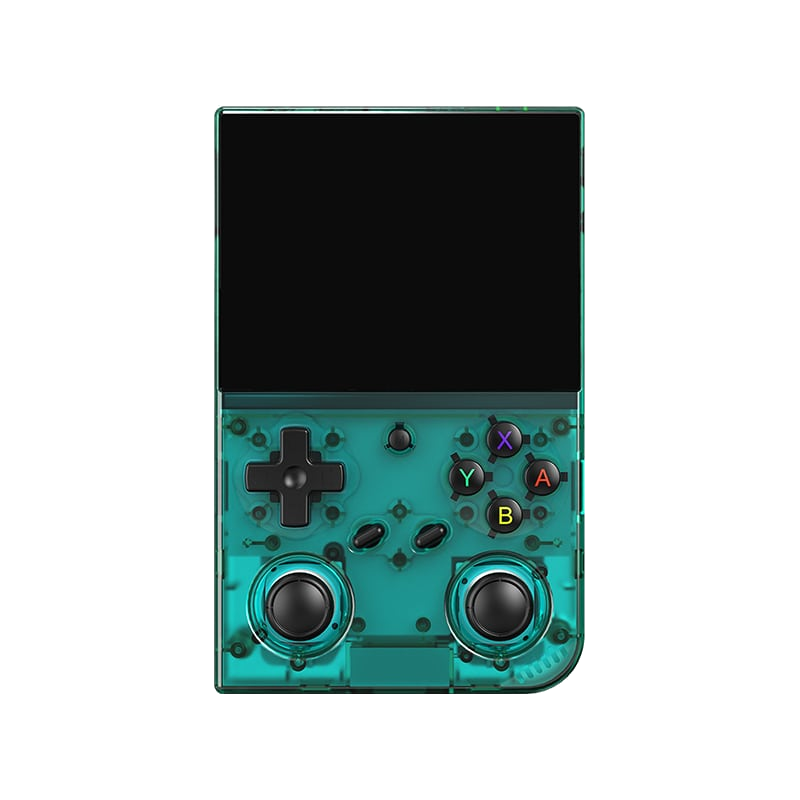
Anbernic RG35XX Pro
A horizontal handheld with the H700 chip — the sweet spot between price and performance.
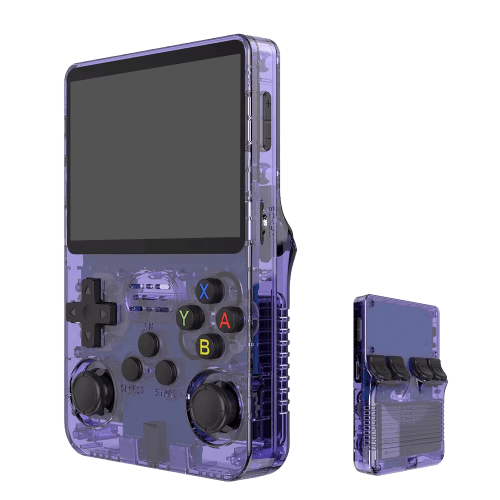
R36S
An affordable clone with a vertical display and an open system.
Batocera.linux
A Linux distribution that turns anything into a retro console — a PC, a Raspberry Pi, or a handheld.
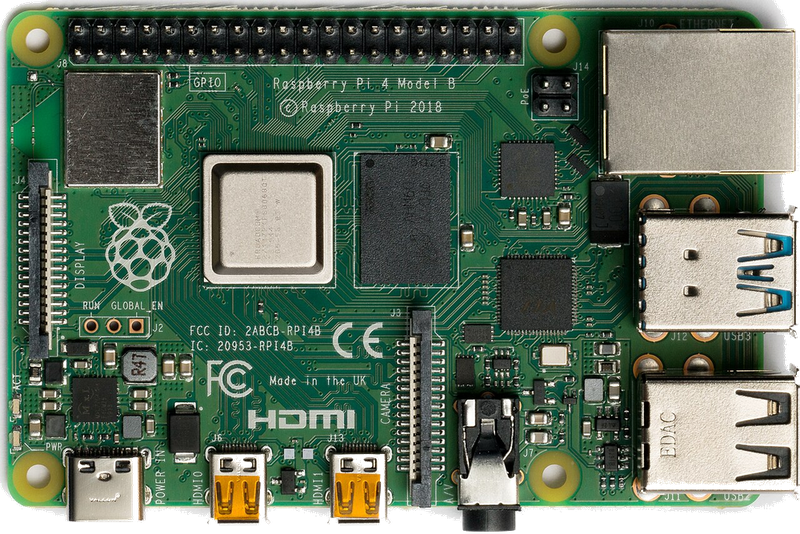
Raspberry Pi & spol.
A cheap box the size of a deck of cards that you can turn into a retro console for your TV.
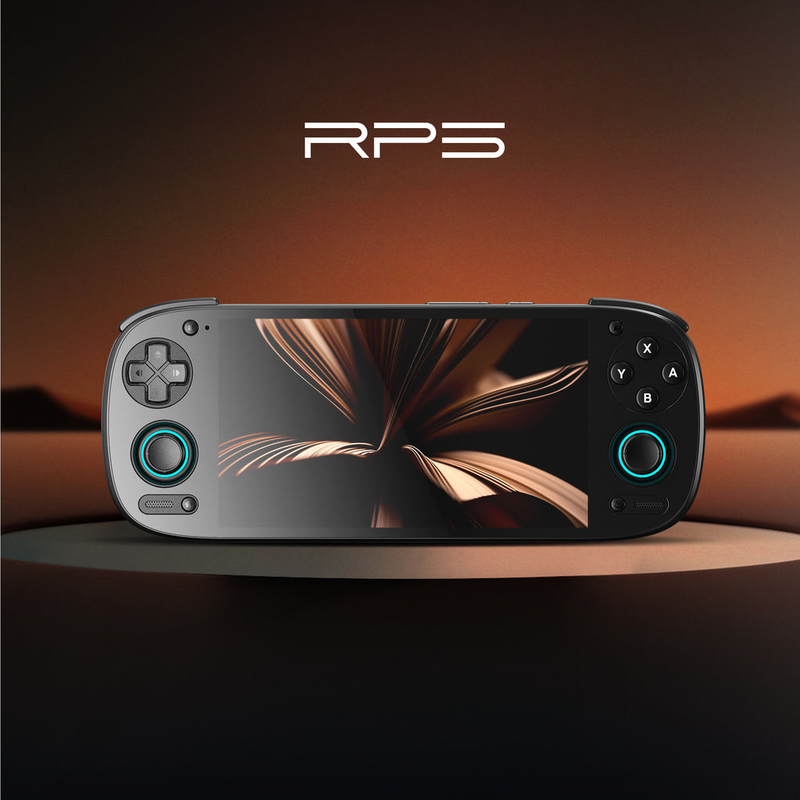
Android (boxy, TV i telefony)
Phone, TV box or Android TV — download an emulator from the store and play within minutes.
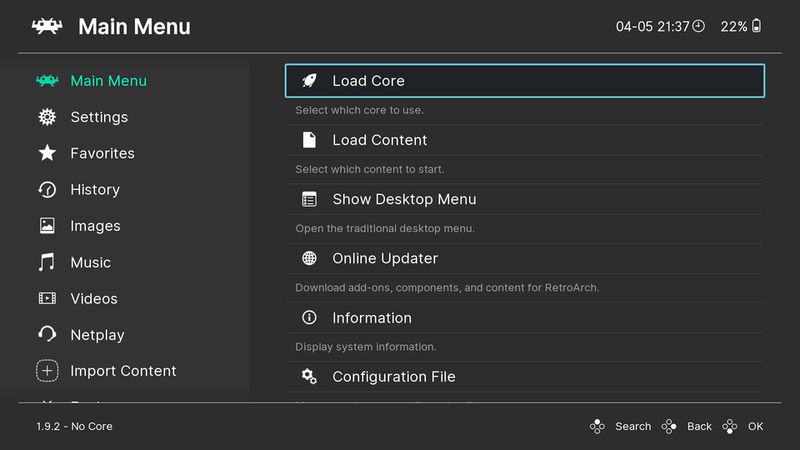
Emulace na PC
The most powerful and flexible path — from 8-bit all the way to PS2, GameCube and 3DS.
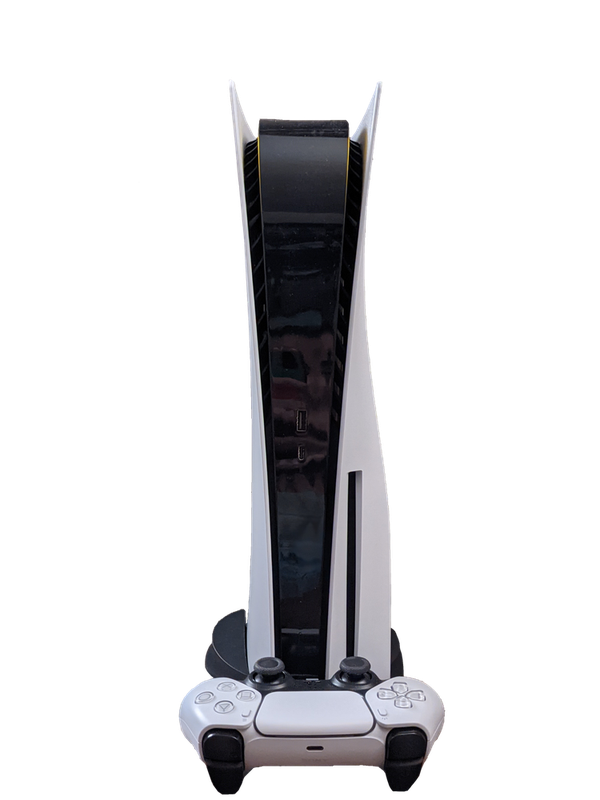
Emulace na konzolích (PS, Xbox, Switch)
Even a PlayStation, Xbox or Switch can be turned into a retro machine — through their homebrew scene.
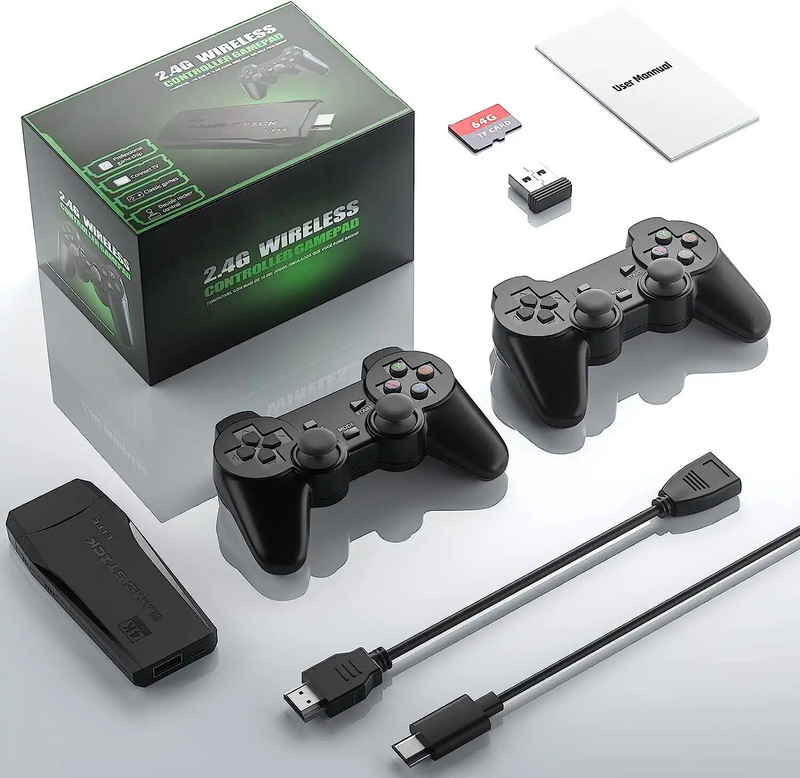
Game Stick (HDMI)
A cheap HDMI "stick" for your TV with a pair of wireless controllers — retro gaming with no setup.
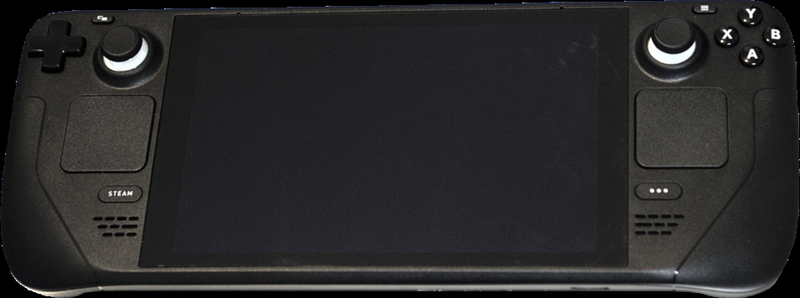
Steam Deck
A pocket gaming PC from Valve — and after a few minutes with EmuDeck, also the most powerful retro handheld you can get.
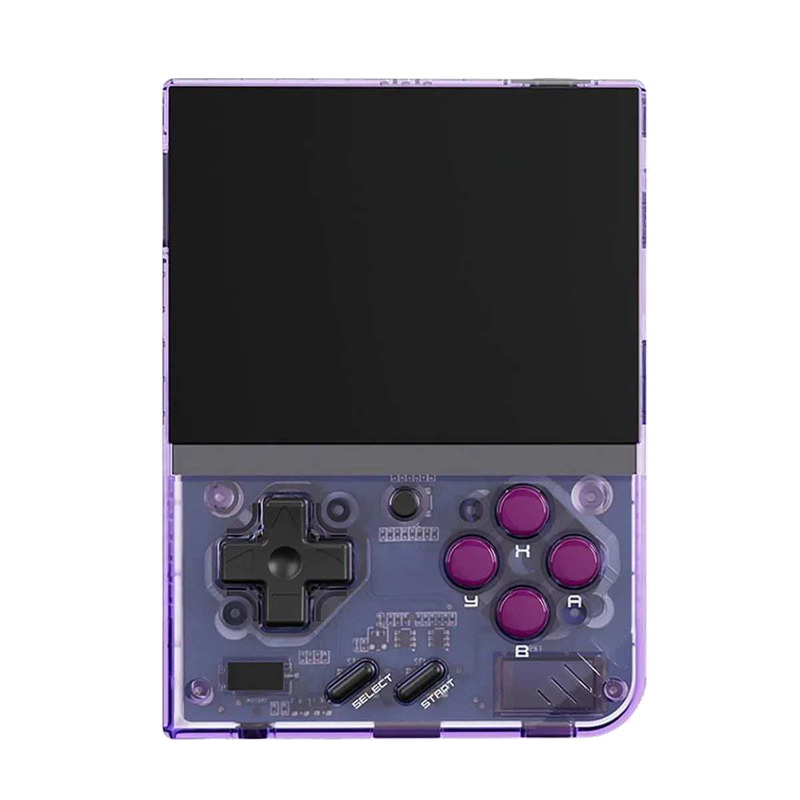
Miyoo Mini Plus
A tiny vertical keychain-sized pocket handheld with an amazing price-to-experience ratio and the community OnionOS.
ROMky: kde se berou hry pro emulátory
What a ROM is, how to obtain one legally, where the law stands, and why game preservation matters.
AYN Odin 2
Výkonný Android handheld ve stylu herního ovladače, ve víc výkonnostních variantách.
Miyoo A30
Vodorovná kapesní konzole ve stylu Game Boy Micro, ideální na NES až PS1 klasiku.
Miyoo Flip
Véčko ve stylu GBA SP s čipem RK3566 – zvládne i Dreamcast, i když ne vždy plynule.
Miyoo Mini V4
Čtvrtá revize levné legendy – stejný slabý čip, ale konečně vydrží baterie i Wi-Fi.
Powkiddy RGB30
Hranatý handheld se čtvercovým displejem a joysticky posazenými nad tlačítky místo vedle nich.
Retroid Pocket 4 Pro
Nejvýkonnější Retroid s AMOLED displejem, který se otáčí i na výšku.
Retroid Pocket 5
Levnější sourozenec Pocket 4 Pro s větším displejem a osvědčeným výkonem.
Retroid Pocket Mini
Kapesní konzole ve skutečně kapesní velikosti pro rychlé retro hraní odkudkoli.
Anbernic RG28XX
Nejmenší člen rodiny s čipem H700, kapesní tvar inspirovaný klasickými herními konzolemi.
Anbernic RG34XX
Sklápěcí tělo v duchu klasických konzolí s neobvyklým 3,4palcovým displejem.
Anbernic RG353M
Vodorovný sourozenec RG353V se stejným T618 čipem a asymetrickými páčkami à la Vita.
Anbernic RG353V
Svislý PDA tvar, duální Android/Linux boot a čip T618 v kapesním balení.
Anbernic RG35XX
Malá krabička, která v roce 2023 nastartovala vlnu levných linuxových retro handheldů.
Anbernic RG35XX H
První RG35XX s pořádnými analogovými páčkami, míří na 3D hry z Nintenda 64 a PSP.
Anbernic RG35XX Plus
Stejná krabička jako RG35XX, jen konečně s Wi-Fi a Bluetooth pro bezdrátové ovladače.
Anbernic RG35XX SP
Sklápěcí tvar jako Game Boy Advance SP – displej schovaný pod krytkou přímo v kapse.
Anbernic RG405M
Kovové tělo, klasické tlačítka bez dotykové obrazovky a čip Unisoc T618.
Anbernic RG405V
Celokovové tělo, čip Unisoc T618 a čistě linuxový systém bez Androidu a kompromisů.
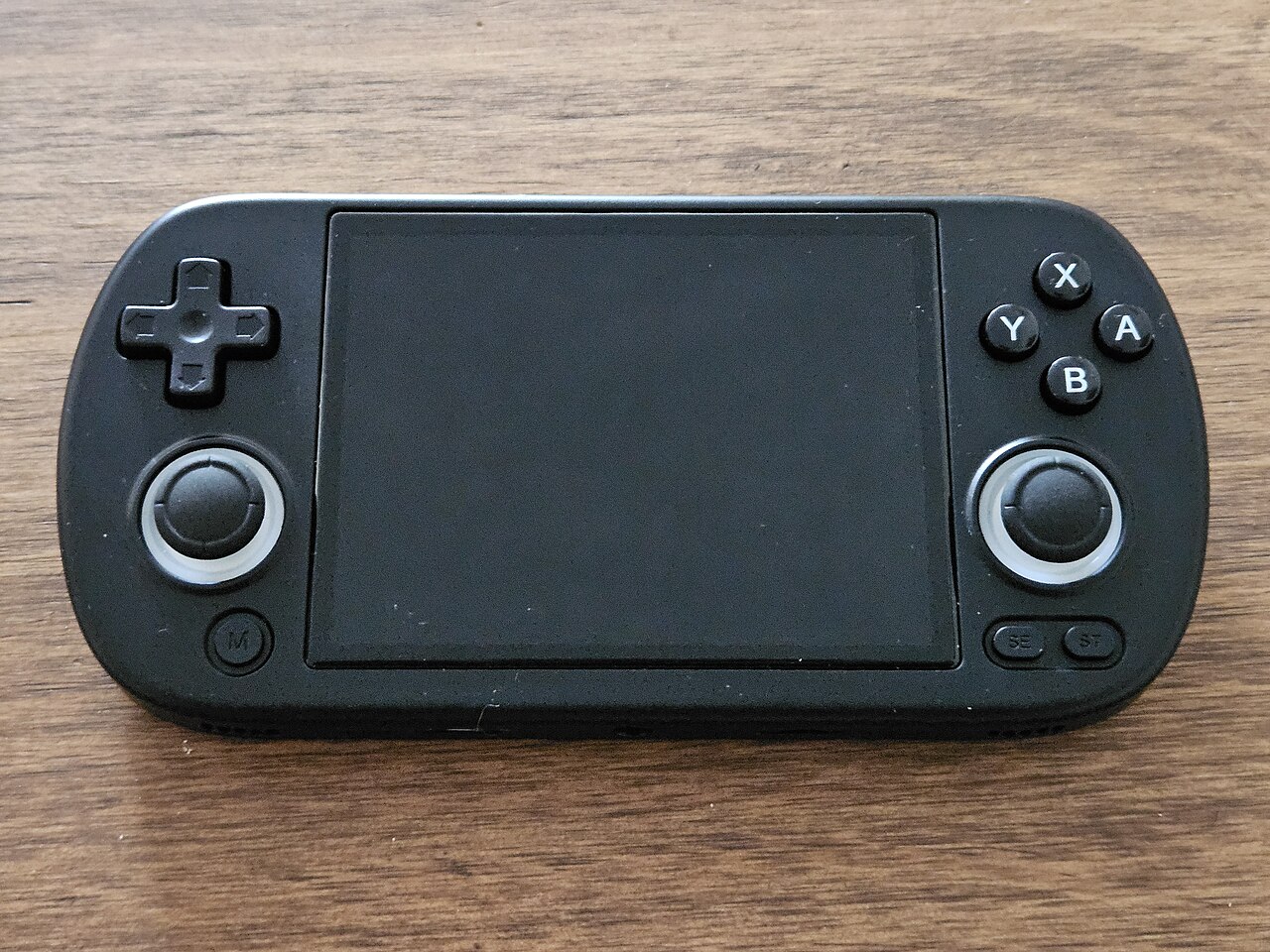
Anbernic RG40XX H
Vodorovná varianta se 4palcovým displejem a čipem H700 pro pohodlnější držení.
Anbernic RG40XX V
Svislá varianta ve tvaru připomínajícím klasický Game Boy, se stejným čipem jako model H.
Anbernic RG503
OLED displej, kovové tělo a čip RK3566 v klasickém tvaru herního ovladače.
Anbernic RG505
Tvar jako PS Vita, ale uvnitř skutečný Qualcomm Snapdragon 865 a AMOLED displej 960×544.
Anbernic RG556
Vlajková loď Anbernic s AMOLED displejem, čipem Unisoc T820 a duálním Android/Linux systémem.
TrimUI Brick
Vertikální handheld ve stylu Game Boye se stejnou elektronikou jako Smart Pro.
TrimUI Smart Pro
Malé tělo, velký 4,96" 16:9 displej a čip sdílený s TrimUI Brick.